
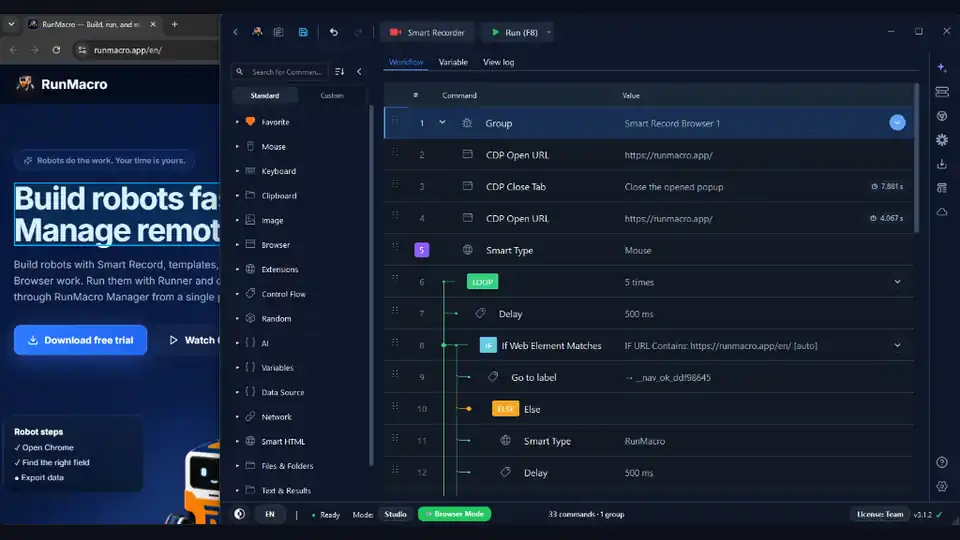

We have all experienced this frustration. You need to automate repetitive clicks on your Windows 11 PC—whether grinding an incremental browser game, refreshing a stubborn inventory portal, testing a web application, or batch-approving records in a back-office tool. You search Google, download a legacy utility like OP Auto Clicker 3.0 or GS Auto Clicker, set a 50-millisecond interval, and hit F6.
Then disaster strikes.
Your physical mouse pointer is violently hijacked. The cursor begins darting erratically across your display, locking you completely out of your computer. Try replying to an urgent message on Slack? Impossible—the clicker yanks your focus away mid-sentence. Want to review a spreadsheet or write an email on your second monitor? Good luck: the moment your active window shifts by a single pixel, the coordinate clicker begins blindly firing clicks into random desktop icons, closing browser tabs, or muting your system audio.
Traditional coordinate-based clickers turn your high-performance, multi-threaded Windows 11 machine into a single-task brick.
The good news? You do not have to surrender your hardware cursor anymore. In this in-depth guide, you will discover how to configure the best background auto clicker windows 11 setup that silently executes thousands of clicks inside background browser tabs and desktop applications. By pairing modern Chrome DevTools Protocol (CDP) with desktop accessibility trees, you can deploy a true auto clicker without mouse takeover—leaving your physical mouse 100% free for work, gaming, and daily multitasking.
The Technical Reality: Why Legacy Clickers Hijack Your Cursor
To understand why modern background automation is a massive leap forward, we must examine the low-level architecture of legacy clickers.
The Win32 SendInput Flaw in Classic Tools
Legacy software like OP Auto Clicker, GS Auto Clicker, AutoClicker by MurGee, and basic AutoHotkey (AHK) scripts rely on the decades-old Windows Win32 API. Under the hood, they invoke either the deprecated mouse_event API or the standard SendInput() function configured with INPUT_MOUSE:
// How legacy auto clickers operate at the Windows OS level
INPUT input = {0};
input.type = INPUT_MOUSE;
input.mi.dx = targetX * (65536 / screenWidth);   // Global screen coordinates
input.mi.dy = targetY * (65537 / screenHeight);
input.mi.dwFlags = MOUSEEVENTF_ABSOLUTE | MOUSEEVENTF_MOVE | MOUSEEVENTF_LEFTDOWN;
SendInput(1, &input, sizeof(INPUT));
Notice the fundamental bottleneck: SendInput operates at the global operating system hardware abstraction layer.
When SendInput executes:
1. Windows intercepts the hardware input queue.
2. The OS forcefully translates the hardware cursor coordinate to (targetX, targetY).
3. The system pointer is physically moved across your display adapter.
4. The window currently situated under those monitor coordinates receives the WM_LBUTTONDOWN and WM_LBUTTONUP window messages.
Because this happens at the display adapter driver level, there is only one shared OS cursor. If an auto clicker moves that pointer 20 times per second, you cannot use your mouse for anything else. Even worse, if an unexpected notification pop-up appears or you minimize the target window, SendInput continues firing blindly into whatever program is now occupying those physical screen pixels.
Why PostMessage and SendMessage Fail on Windows 11
Experienced Windows scripters often try a classic developer workaround: sending Win32 window messages (PostMessage(hwnd, WM_LBUTTONDOWN, ...) or SendMessage) directly to a background window handle (HWND).
While this technique worked on Windows XP and Windows 7, modern Windows 11 security and rendering architectures routinely break it:
• Chromium Sandboxing & Process Isolation: Modern web browsers (Google Chrome, Microsoft Edge, Brave) and Electron applications (Slack, Discord, VS Code) use direct GPU rendering and multi-process architectures. Synthetic Win32 window messages delivered to a background Chromium window handle are discarded if the tab lacks active OS focus.
• Per-Monitor Dynamic DPI Scaling: Windows 11 display scaling (125%, 150%, 175%) causes Win32 window coordinate offsets to drift, leading to misaligned clicks.
• Occlusion Culling: When a window is minimized or covered, modern rendering engines pause frame updates and discard traditional synthetic inputs to conserve power.
The Modern Approach: Chrome DevTools Protocol & Smart UI Automation
To run a reliable background clicker for PC, you must decouple your click triggers from the Windows desktop pointer subsystem.
RunMacro solves this challenge through two dedicated automation engines:
┌────────────────────────────────────────────────────────┐
│                   YOUR WINDOWS 11 PC                   │
├──────────────────────────┬─────────────────────────────┤
│   PHYSICAL USER SPACE    │     BACKGROUND RUNMACRO     │
│                          │                             │
│ • Hand on Physical Mouse │ • Chrome CDP Engine         │
│ • Working in Word/Excel  │   (WebSocket Port 9222)     │
│ • Gaming on Monitor 1    │ • Injects Input Events      │
│ • Cursor 100% Free       │   Directly into DOM Nodes   │
│                          │ • Zero Mouse Hijacking      │
└──────────────────────────┴─────────────────────────────┘
1. Chrome DevTools Protocol (CDP) for Web & Browser Apps
Instead of moving the operating system cursor, RunMacro establishes a direct, bi-directional WebSocket connection with Chromium via the official Chrome DevTools Protocol (CDP).
When configured as a chrome cdp auto clicker, RunMacro dispatches synthetic input events straight into the browser’s internal layout engine:
{
  "method": "Input.dispatchMouseEvent",
  "params": {
    "type": "mousePressed",
    "x": 482,
    "y": 315,
    "button": "left",
    "clickCount": 1
  }
}
Because this event is injected directly into the tab's rendering pipeline:
• Your physical Windows mouse cursor never moves.
• Clicks are delivered to the page even when the browser tab is in the background, as long as the browser and its DevTools connection stay open. Whether a click has the intended effect still depends on the page (for example, an element that is hidden or covered).
• The browser window can sit behind other programs or be minimized to the taskbar while clicks are sent.
• Buttons and links are targeted by semantic CSS selectors or XPath rather than fragile monitor pixels.
If you prefer a lightweight browser companion, you can also pair RunMacro with our Chrome auto clicker extension to pick dynamic DOM elements in one click.
2. Microsoft UI Automation (UIA) for Native Desktop Apps
For native Windows applications, RunMacro functions as a smart ui clicker. Rather than relying on rigid screen coordinates, it interfaces with the Windows Accessibility Tree via Microsoft UI Automation (UIA). This allows RunMacro to trigger programmatic control patterns (such as InvokePattern.Invoke() or TogglePattern.Toggle()) directly on specific desktop buttons, menus, and table cells without physically moving the cursor across the screen.
Step-by-Step Tutorial: How to Set Up a Background Auto Clicker on Windows 11
Configuring a silent, non-intrusive background auto clicker Windows 11 workflow takes less than two minutes with RunMacro's intuitive visual interface. Here is the complete step-by-step walkthrough.
Step 1: Download & Install RunMacro (Microsoft Store Verified)
Safety and system integrity should always come first when choosing automation software. If you are searching for a safe, modern free auto clicker for pc, downloading untrusted binaries from ad-heavy mirror portals is a massive risk. Many legacy clickers come bundled with unwanted adware, bundled toolbars, or suspicious binaries that trigger Windows Defender SmartScreen alerts.
RunMacro is officially verified and distributed through the Microsoft Store, providing a clean, digitally signed installation. Store submissions are scanned for viruses and malware and signed by Microsoft before release.
1. Visit the official Download RunMacro for Windows page, or search for RunMacro directly inside the Windows 11 Microsoft Store.
2. Alternatively, open the verified store page directly: RunMacro on Microsoft Store.
3. Complete the installation and launch RunMacro Studio.
Microsoft Store Verification Benefits:
✔ Clean package, scanned for viruses and malware during Store certification (Zero adware, crypto-miners, or spyware)
✔ Signed by Microsoft at publishing (No unsigned publisher security blocks)
✔ Runs on Windows 11 and Windows 10 (version 2004 or later), x64
Step 2: Switch to Browser Mode (Chrome CDP Automation)
RunMacro provides two dedicated automation environments: Desktop Mode (for native Windows apps) and Browser Mode (for background web automation via CDP).
To click continuously without losing control of your mouse cursor:
1. Look at the top navigation bar inside RunMacro Studio and click on Browser Mode.
2. RunMacro will automatically detect your installed Chromium-based browser (Google Chrome, Microsoft Edge, Brave, or custom anti-detect browser profiles).
3. Click Connect Browser. RunMacro launches a separate browser profile with remote debugging enabled (--remote-debugging-port) or connects to a browser that already exposes a debugging port. Since Chrome 136, Chrome ignores the remote debugging switch on the default Chrome data directory, so automation runs in its own profile folder.
4. Navigate to your target website, online game, or web tool.
Step 3: Configure Smart Element Click or Viewport Coordinates
Next, define the exact target for your background clicks. RunMacro provides two flexible options depending on your target application:
#### Method A: Smart Element Click (Recommended for Web Portals)
Targeting HTML elements by selector keeps your macro on the right button when the page layout shifts, ads load, or the window resizes. If the site changes the element itself (a new ID or class), update the selector:
1. In the left action panel, drag the Smart HTML Click command onto your workflow canvas.
2. Click the Element Picker icon. Hover over the button or interactive element in your target browser tab, and click once to capture its CSS selector (for example: button#claim-daily-bonus or div.action-bar > button.submit-btn).
3. Select the click type: Left Click, Right Click, or Double Click.
#### Method B: Viewport Relative Click (For Canvas & WebGL Games)
If you are automating an HTML5 <canvas> game (like an incremental clicker or WebGL game) where internal buttons do not have individual DOM nodes:
1. Add a Viewport Click (CDP) command.
2. Enter the (X, Y) coordinate offset relative to the browser tab viewport (e.g., X: 450, Y: 600), rather than absolute monitor coordinates. CDP defines these as coordinates relative to the main frame's viewport in CSS pixels.
3. Because coordinates are relative to the page viewport, moving the browser window does not shift your clicks. If the page itself reflows (for example, a responsive layout at a different window size or zoom), check the coordinates again.
Step 4: Initialize & Configure Browser Automation in RunMacro
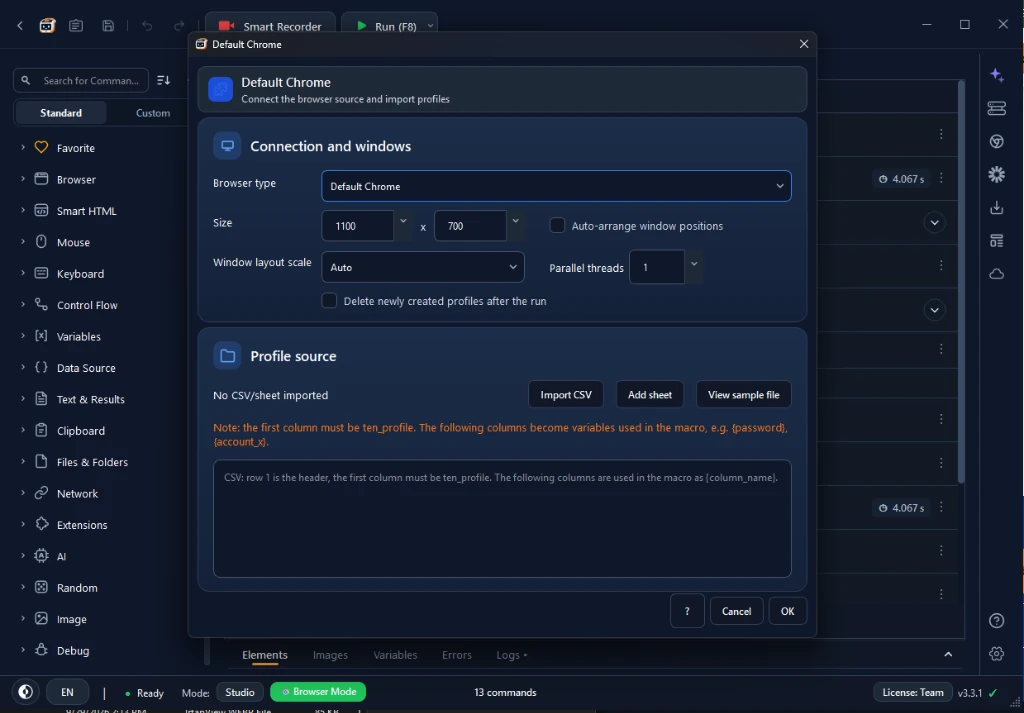
When launching your automation session, RunMacro provides a dedicated browser configuration modal:
1. Browser Type & Window Size: Choose your default Chromium profile or custom environment. Fix the viewport dimensions (default 1100 x 700) to guarantee that website layouts and element coordinates remain perfectly consistent across all displays.
2. Parallel Threads: Control multi-instance execution to run background automation across multiple isolated browser windows simultaneously.
3. Profile Source Integration: Seamlessly import profile lists via CSV or sheets to batch-execute macros across multiple user sessions without repetitive manual setup.
The entire Chrome DevTools Protocol handshake is handled silently by RunMacro in the background—requiring zero terminal flags, command-line arguments, or manual port forwarding.
Step 5: Configure Click Interval (ms) and Human-Like Random Jitter
A perfectly fixed click cadence is one of the simplest automation patterns for rate-limiters and anti-spam rules to spot. Before configuring your speed, you can measure your baseline clicking frequency with our free online CPS test tool to verify your desired actions-per-second rate. To set up the timing:
1. Wrap your click command inside a Loop block (set it to loop indefinitely or for a specific iteration count, such as 5,000).
2. Add a Delay step immediately following the click action.
3. Choose your base speed:
- High-speed clicking: 25ms to 50ms (for performance testing or rapid clicking).
- Balanced automation: 200ms to 500ms (for daily web routines and portal workflows).
4. Add random variance: Use a Random Delay step instead of a fixed Delay and set a minimum and maximum (e.g., 210ms to 290ms). Each pause is then picked at random within that range. This removes the fixed rhythm, but it does not make automation undetectable: sites can still identify automation from other signals, so follow each site's terms.
Example Background Clicker Workflow:
┌────────────────────────────────────────────────────────┐
│ 1. LOOP (Count: 5000)                                  │
│    ├── 2. SMART HTML CLICK: button#collect-reward      │
│    └── 3. RANDOM DELAY: 165–235ms                      │
└────────────────────────────────────────────────────────┘
Step 6: Assign Emergency Hotkeys and Run in the Background
Before launching any automated loop, having an instant stop mechanism is vital. You need a dedicated kill-switch to pause or terminate the script immediately:
1. Open Settings > Hotkeys in RunMacro.
2. Verify your default global emergency triggers:
- Run / Resume: F8
- Emergency Stop / Kill-Switch: F9 (or Escape)
3. Hit Run (or press F8).
4. Minimize RunMacro and switch over to your favorite spreadsheet, open your code editor, or launch a game on your primary monitor.
Check your hardware cursor: it remains completely still, smooth, and fully under your control. In the background, RunMacro silently clicks your target elements at hundreds of actions per minute without moving your mouse pointer. This makes RunMacro the premier no code windows automation tool for multitasking power users.
Comparison Table: Traditional Clickers vs. Background Auto Clicker
To see how legacy tools compare to modern Chrome CDP and UI automation, review this feature matrix:
| Feature / Capability | OP Auto Clicker 3.0 / GS Clicker | Basic AutoHotkey Script (Click X, Y) | ★ RECOMMENDEDRunMacro (Browser Mode & CDP) |
|---|---|---|---|
| Mouse Hijacking | ❌ High (Completely steals hardware cursor) | ❌ High (Steals cursor unless using complex scripts) | ✅ Zero (Cursor stays 100% free for multitasking) |
| Background / Minimized Support | ❌ No (Requires active on-screen focus) | ⚠️ Partial (ControlClick often ignored on Win 11) | ✅ Full (Clicks inside background & minimized tabs) |
| Resilience to Window Movement | ❌ Fragile (Fails if window shifts by 1 pixel) | ❌ Fragile (Dependent on absolute pixel positions) | ✅ Resilient (follows DOM selectors or viewport, not screen pixels) |
| Randomized Timing | ⚠️ Minimal or None | ⚠️ Requires custom math scripting | ✅ Built-in (Random Delay with min/max range) |
| Security & Safety Verification | ⚠️ Unverified mirrors, frequent AV warnings | ⚠️ Requires manual script compilation | ✅ Microsoft Store Verified (Clean & Signed) |
| Multi-Monitor Usability | ❌ Cursor pulled away across screens | ❌ Screen-spanning pointer disruptions | ✅ Seamless (Work on Monitor 1, click on Monitor 2) |
| Ease of Use | Basic single-clicker UI | High technical curve (Requires code) | ✅ No Code Windows Automation (Visual canvas) |
Real-World Use Cases: Where a Background Clicker Shines
Why do professionals, power users, and gamers specifically seek an auto clicker without mouse takeover? Here are four practical scenarios where modern background automation excels:
1. AFK Farming in Web & Browser Games
Incremental clicker games, idle RPGs, and web-based games (such as Cookie Clicker, Realm Grinder, or browser MMO events) reward players for continuous clicking.
• The Old Way: You set up OP Auto Clicker and leave your computer unattended for hours, unable to watch YouTube, check social media, or do schoolwork.
• The RunMacro Way: RunMacro clicks the game element in a background Chrome tab at 20 clicks per second. Meanwhile, you can play a full-screen game on Steam or write a report in Microsoft Word without any cursor stutter.
2. High-Frequency Web Automation & Restock Checking
Securing concert tickets, limited-edition hardware, or time-sensitive inventory drops often requires constant refreshing and rapid clicking the moment a button changes state.
• By pairing RunMacro's Wait for Element with background clicking, your browser can automatically detect when an item becomes available and trigger instant clicks in the background—even while you are on a video conference call.
3. Software QA & Web Application Stress Testing
Software engineers and QA testers regularly need to validate web forms, simulate rapid user input, and test server rate-limiting thresholds.
• Traditional tools hijack the developer's computer, preventing any concurrent development.
• With RunMacro's chrome cdp auto clicker capabilities, QA teams can run thousands of synthetic user interactions against local staging environments (localhost:3000) while writing code in VS Code.
4. Back-Office Data Entry & Repetitive Portal Approvals
Administrative staff frequently spend hours clicking through pagination links, approving expense reports, or marking items as completed inside web portals like Jira, Salesforce, or Workday.
• RunMacro acts as a smart ui clicker, looping through tables and clicking confirmation buttons in the background, allowing employees to focus on analytical work rather than manual clicking.
Pro Tips: Natural Timing and Maximum Stability
When running an automated background clicker for PC for extended periods, follow these proven engineering practices:
1. Add Micro-Pauses Between MouseDown and MouseUp
Real human fingers do not click instantaneously. When a person presses a mouse button, the switch stays depressed for approximately 45ms to 85ms.
Scripts that send mouseDown and mouseUp with zero time between them are easy to tell apart from a person. RunMacro's CDP coordinate click (Viewport Click) keeps the button pressed for about 40 ms between the press and release events.
2. Avoid Round Number Intervals
Automated scripts that click at exact intervals (such as precisely 100ms, 500ms, or 1000ms) create an artificial distribution curve in server-side analytical monitoring. Use a Random Delay range (giving pauses such as 247ms, 262ms, 239ms) so the interval is not perfectly fixed.
3. Combine Clicks with "Wait for Element"
If your clicks trigger asynchronous AJAX requests or dynamic page updates, never rely solely on fixed delay timers. If a network hiccup delays a page reload, a rigid timer may fire before the target element exists. Use RunMacro's Wait for Element command to ensure the DOM node is fully rendered and clickable before dispatching events.
Frequently Asked Questions (FAQ)
Can a background auto clicker on Windows 11 really click in a minimized window without moving my mouse?
Yes. With traditional Win32 clickers, clicking in a minimized window is impossible because the operating system requires an active, visible pixel to receive the hardware cursor. However, RunMacro's Browser Mode utilizes the Chrome DevTools Protocol (CDP), which communicates directly with Chromium's underlying rendering pipeline. As long as the browser process and its DevTools connection are active, CDP dispatches click events to the page whether the window is minimized, hidden behind other programs, or on another virtual desktop. Chrome does slow down JavaScript timers in hidden tabs (Chrome timer throttling), so pages that refresh on timers may update more slowly while hidden.
Is RunMacro safe to download on Windows 11?
Yes. Unlike open-source clickers hosted on third-party mirror portals that are frequently packaged with intrusive adware, bundled toolbars, or suspicious binaries, RunMacro is officially published on the Microsoft Store. Before release, Store submissions go through Microsoft's certification process, which scans packages for viruses and malware and checks content compliance, and the package is signed by Microsoft. If an antivirus tool still flags the app, report it to the vendor and to RunMacro support.
Will anti-cheat systems detect a background auto clicker?
In web browsers, RunMacro dispatches standard mouse events via CDP and can randomize the delay between clicks. That does not make automation undetectable: a website can still recognize automation from other signals (behavior patterns, an attached debugger, or server-side rules), and many sites forbid automated play or bots in their terms. For kernel-level anti-cheat engines in native desktop competitive games (such as Riot Vanguard or Easy Anti-Cheat), any background automation targeting the game client without hardware emulation may be flagged. Always check the Terms of Service of competitive online games before automating in-game actions.
What is the technical difference between Win32 SendInput and Chrome CDP clicking?
Win32 SendInput is a Windows OS API function that moves the single global hardware cursor across your physical monitors, seizing user focus and monopolizing the mouse. Chrome CDP (Input.dispatchMouseEvent) is an API protocol built directly into Chromium that communicates with web pages at the DOM and layout level. It injects mouse input events directly into the tab's event dispatcher without touching the Windows cursor queue, allowing uninterrupted multitasking.
Can I run multiple background auto clickers simultaneously in different browser tabs?
Yes. Because RunMacro does not depend on a single shared physical mouse pointer, you can open multiple browser tabs or independent browser profiles and run parallel automation routines simultaneously. One tab can handle repetitive form submissions while another tab refreshes a live dashboard, all while you comfortably browse the web or type documents on your main screen.
Conclusion: Take Back Control of Your Windows 11 PC
The era of tolerating "mouse hijacking" is officially over. You no longer have to freeze your workstation or stare at your monitor while a primitive clicker taps a button.
By switching from outdated coordinate clickers to modern, browser-level background automation, you unlock the full multitasking power of Windows 11. Run your macros silently in the background, boost your daily productivity, and keep your physical mouse exactly where it belongs: in your hands.
Ready to Automate Without Losing Your Mouse?
• 🖱️ Explore Features: Check out our comprehensive Free Auto Clicker for PC guide to discover advanced macro capabilities, interval tuning, and keyboard loops.
• ⌨️ Keyboard Automation: Need to automate keyboard presses or hold down the spacebar alongside mouse clicks? Check out our free auto keyboard presser.
• 🚀 Download Now: Get the verified installer directly from the Download RunMacro for Windows page or grab your copy on the Microsoft Store.
• ⏱️ Setup in Seconds: Launch RunMacro, switch to Browser Mode, target your first element, and experience seamless, non-intrusive background clicking today!