

Batch files (.bat) are one of the most reliable, time-tested tools built directly into Microsoft Windows. From system administrators automating maintenance routines to professionals managing daily file backups, running batch scripts eliminates repetitive typing and manual clicks.
script.bat). To grant elevated permissions, right-click and choose Run as administrator. To automate and schedule batch scripts without opening CMD windows, use RunMacro to pass dynamic variables and trigger automated workflows.Method 1: Double-Click to Run via File Explorer
The simplest and most common way to run a batch script is through the Windows File Explorer:
• Open File Explorer and navigate to the directory where your .bat file is stored.
• Locate your batch script (for example, cleanup.bat or backup.bat).
• Double-click the file with your left mouse button. Windows automatically launches cmd.exe, executes each command sequentially from top to bottom, and closes when finished.
Running with Administrator Privileges
Many system maintenance and automation tasks — such as flushing DNS, modifying protected directories in C:\Program Files, or restarting Windows services — require elevated permissions.
To execute a batch file with Administrator privileges:
• Right-click the .bat file.
• Select Run as administrator from the context menu.
• When the User Account Control (UAC) prompt appears asking *"Do you want to allow this app to make changes to your device?"*, click Yes.
script.bat.txt.Method 2: Run .BAT File from Command Prompt or PowerShell
Running batch files from a command-line interface provides real-time visibility into terminal output, error logs, and exit codes.
Running from Command Prompt (CMD)
• Press Win + R on your keyboard, type cmd, and press Enter. (To run CMD as administrator, press Ctrl + Shift + Enter).
• Navigate to your script folder using the cd command, or reference the full path directly:
cd /d "C:\My Scripts"
call script.bat
You can also execute the script directly by providing its absolute path enclosed in quotes:
"C:\My Scripts\backup.bat"Using the call command ensures that if your script calls another script, control returns cleanly to your primary command line without terminating the console session early.
Running from Windows PowerShell
PowerShell is the default shell on modern Windows 10 and 11 installations. Because PowerShell uses security policies that prevent executing scripts from the current directory without explicit qualification, you must prepend .\ to the filename:
.\script.batIf the file path contains spaces, use PowerShell's call operator &:
& "C:\My Scripts\cleanup.bat"Passing Arguments & Parameters to Batch Files
Batch files can accept dynamic command-line parameters passed at runtime. Inside the batch file, parameters are accessed as %1, %2, up to %9 (or %* for all arguments):
@echo off
echo Starting backup from %1 to %2
xcopy "%~1\*" "%~2\" /s /e /y
echo Backup complete!
To run this script with arguments, pass your values separated by spaces:
backup.bat "C:\ProjectData" "D:\Backups"Common Issues: Why Is My .BAT File Not Running?
If your batch file fails to execute properly or disappears instantly, check these three common causes:
| Issue | Cause | Proven Solution |
|---|---|---|
| Window closes immediately | Script finishes or encounters a syntax error, causing CMD to exit | Add pause as the last line of your script so the console stays open |
| "Access is denied" error | Script requires elevated administrator rights | Right-click the .bat file and select Run as administrator |
| "The system cannot find the path" | Unquoted spaces in file or directory paths | Wrap all file and folder paths in double quotes: "C:\My Files\run.bat" |
1. The Console Window Closes Instantly
When you double-click a .bat file, Windows opens cmd.exe, runs the commands, and closes the window as soon as the final line executes. If an error occurs midway, the window vanishes before you can read the error message.
Solution: Open the .bat file in Notepad (right-click > *Edit*), and add pause on a new line at the very bottom:
@echo off
echo Running database backup...
rem Your commands here
echo Finished successfully!
pause
The terminal will pause with *"Press any key to continue . . ."*, keeping the window open until you press a key.
2. Missing Administrator Privileges (UAC)
Commands that alter network adapters, modify firewall rules, or touch system registry entries will silently fail or throw *"Access is denied"* when executed by a standard user account. Always run elevated when performing administrative tasks.
3. File Paths Containing Spaces
Windows command processor splits command arguments at space characters. A path like C:\Auto Tasks\run.bat without quotes will be interpreted as two separate tokens: C:\Auto and Tasks\run.bat. Always wrap paths in double quotes: "C:\Auto Tasks\run.bat".
Method 3: How to Automate & Schedule .BAT Files (Daily Cleanup & Workflows)
Manual execution works for one-off tasks, but true productivity comes from unattended automation — having your cleanup, backup, and sync scripts run automatically every day.
The Problem with Windows Task Scheduler
Windows includes the built-in Task Scheduler (taskschd.msc), but it presents several practical headaches:
• Clunky, outdated interface that is cumbersome to configure and debug.
• Flaky background permissions: scripts often fail silently without logging error messages.
• Disruptive console popups: batch scripts frequently flash black CMD windows on your screen during active work or gaming.
• Zero connectivity to web apps, spreadsheets, or modern desktop user interfaces.
The Modern Solution: RunMacro Automation Platform
With RunMacro, you can integrate Windows batch files into full-scale, no-code workflows that combine desktop tasks, web automation, and scheduled execution:
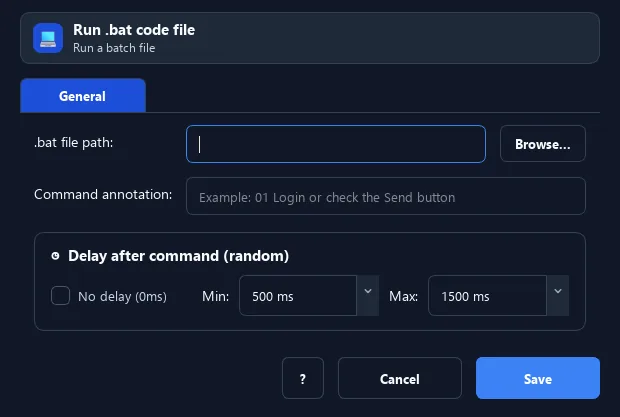
• Silent Background Execution: Execute batch files without intrusive console windows or screen flashes using the Run .BAT File command documentation.
• Dynamic Variable Binding: Feed live data — such as customer IDs from Excel, API responses, or scraped web tables — directly into batch script parameters at runtime.
• End-to-End Hybrid Workflows: Trigger a .bat file to start a local database server, wait for the port to open, perform web actions in background Chrome via Smart HTML, and execute a cleanup batch script upon completion.
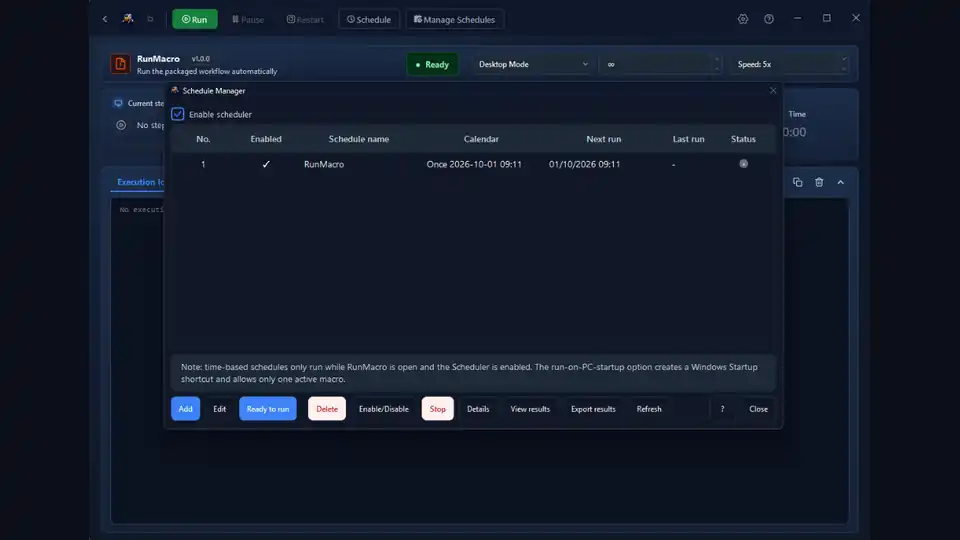
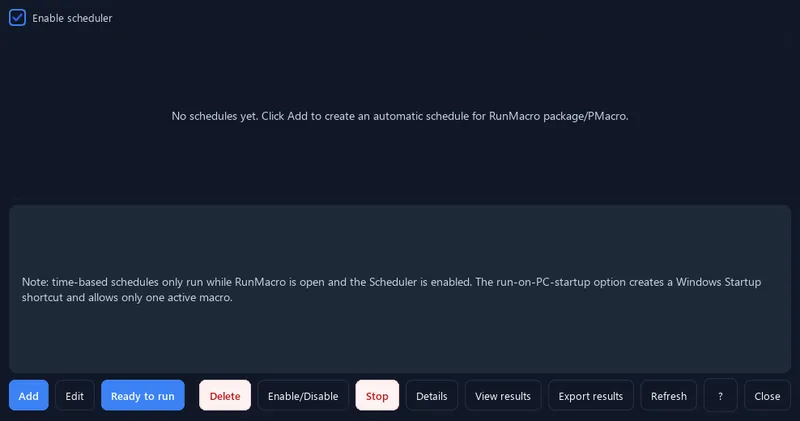
• Reliable Unattended Scheduling: Put your entire macro on a recurring timetable with the built-in RunMacro Runner Scheduler. Set daily, hourly, or weekly triggers with detailed execution logs and failure alerts.
For detailed step-by-step parameter options and configuration tips, refer directly to the Run .BAT File command documentation.
[WORKFLOW EXAMPLE: DAILY SYSTEM MAINTENANCE & REPORT]
1. CODE › RUN .BAT FILE "C:\Scripts\cleanup.bat"
2. FLOW › DELAY 2000ms
3. FILE › READ EXCEL ROW "C:\Reports\DailyMetrics.xlsx"
4. BROWSER › SMART HTML FILL FORM → Upload Daily Status
5. FLOW › LOG "Daily maintenance completed successfully"
Frequently Asked Questions
How do I keep a batch file open after running?
Add a new line with the pause command at the very end of your .bat file. This tells the Windows Command Prompt to halt execution and display *"Press any key to continue . . ."*, keeping the window visible until you press any key so you can read the output and error logs.
Can a .bat file run automatically on Windows startup?
Yes. Press Win + R, type shell:startup, and press Enter to open the Windows Startup folder. Place a shortcut to your .bat file inside this folder, and Windows will execute it automatically every time you log in. For recurring schedules or background execution without CMD popups, use the RunMacro Runner scheduler.
What is the difference between .bat and .cmd files?
Both .bat and .cmd are batch script files recognized by Windows. .bat originated with MS-DOS and runs in all versions of DOS and Windows. .cmd was introduced with Windows NT to run exclusively in cmd.exe. In modern Windows 10 and 11, both run identically inside Command Prompt, though .cmd enforces standard NT command behavior.
How do I edit an existing .bat file?
Right-click the .bat file in File Explorer and choose Edit (or Show more options > Edit in Windows 11). This opens the script in Notepad or your preferred text editor (such as VS Code or Notepad++) so you can modify commands without executing them.
Conclusion
Running a .bat file on Windows is straightforward once you know whether your task requires File Explorer double-clicking, Command Prompt execution with parameters, or elevated Administrator privileges. For recurring routines and enterprise-grade workflows, connecting your batch scripts to the RunMacro automation platform provides hands-free scheduling, variable integration, and reliable desktop automation.