
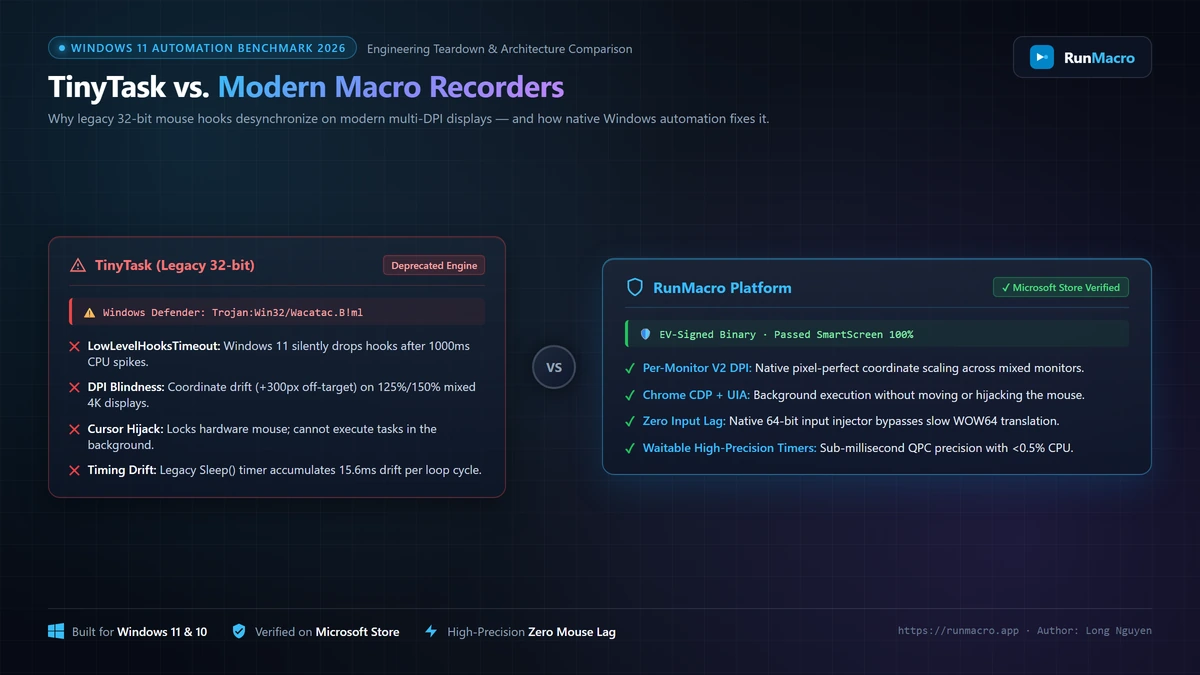

Users are abandoning TinyTask in 2026 because its 32-bit legacy codebase breaks under Windows 11 high-DPI scaling, drifts off-target on multi-monitor setups, and download mirrors are heavily infested with trojans. For a modern, safe alternative with zero mouse lag, RunMacro is the top recommendation.
1. The Harsh Truth About TinyTask in 2026 (Why It Breaks on Windows 11)
TinyTask made its debut over a decade ago as an ultra-compact, 35 KB portable automation utility. In the era of Windows 7, single 1080p monitors, and relaxed kernel security policies, it was an effective tool for repetitive clicking.
In 2026, the underlying Windows subsystem has radically evolved. TinyTask’s fundamental architecture has not.
If you have tried using TinyTask on Windows 11 or modern builds of Windows 10, you have likely encountered broken playback, misplaced clicks, or alarming security alerts. These are not user errors; they are structural architectural failures.
The 32-Bit Hook Trap: Why Playback Stalls and Misses
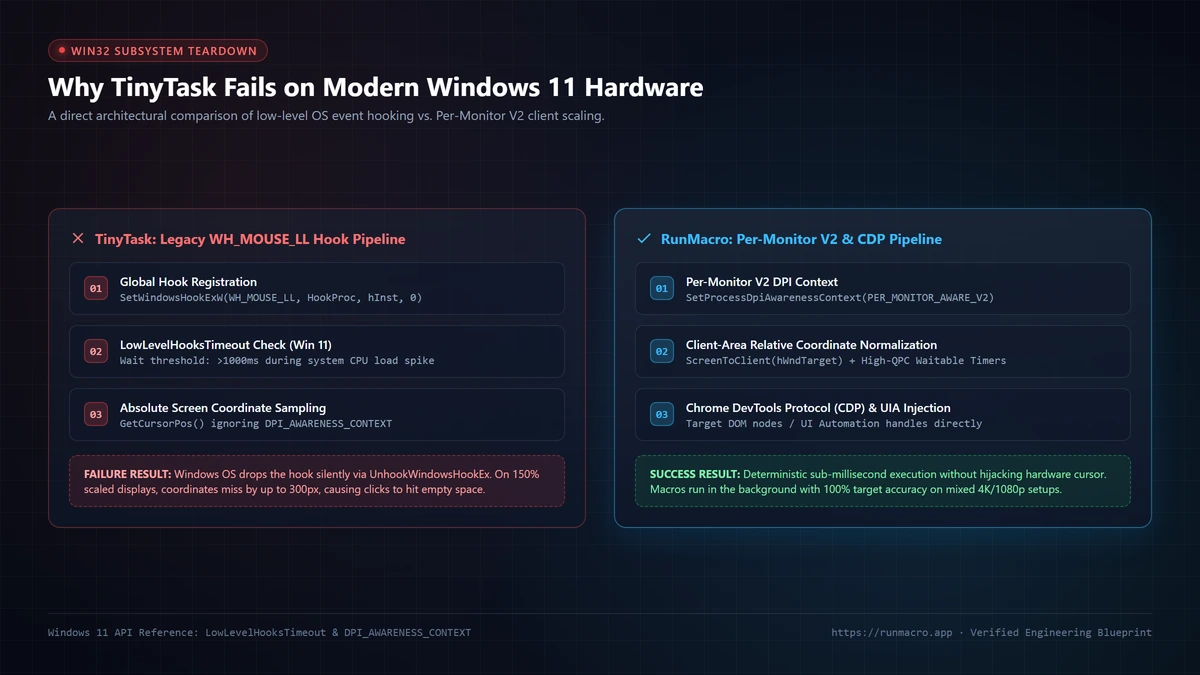
TinyTask captures user interactions using legacy Win32 user-mode hooks (WH_MOUSE_LL and WH_KEYBOARD_LL). When an event occurs, the operating system routes the message to TinyTask’s message pump before dispatching it to the target application.
Modern Windows 11 enforces a strict hook timeout governed by the registry value:
HKEY_CURRENT_USER\Control Panel\Desktop\LowLevelHooksTimeoutBy default, this timeout is set to 1,000 milliseconds. If a system experiences a brief CPU spike—such as background telemetry, antivirus scanning, or an asset loading in a game—TinyTask’s thread fails to acknowledge the message within the allocated window. Rather than queuing the input, Windows silently unhooks the application via UnhookWindowsHookEx. The result is a macro that stops recording mid-sequence or skips crucial keystrokes entirely without displaying an error message.
Furthermore, TinyTask was compiled as a 32-bit (x86) binary. When injecting inputs into 64-bit applications (x64 or ARM64), Windows forces the call through the WOW64 emulation layer. This translation step introduces measurable micro-stutter (15 to 45 milliseconds of input latency), causing recorded mouse sweeps to stutter, drop control points, and desynchronize from the target window.
High-DPI and Multi-Monitor Coordinate Drift
Modern desktop environments frequently mix displays with varying pixel densities—for instance, a 4K primary monitor at 150% scaling paired with a secondary 1080p monitor at 100% scaling.
TinyTask is DPI-unaware. It relies on legacy coordinate mapping functions (GetCursorPos and mouse_event) that query absolute virtual screen coordinates without normalizing for the DPI_AWARENESS_CONTEXT_PER_MONITOR_AWARE_V2 context introduced in modern Windows.
TinyTask Recorded Coordinate: (1920, 1080) on 100% Display
Windows 11 Render Target (150% Scaling): (1920 * 1.5, 1080 * 1.5) = (2880, 1620)
Result: Click lands 960 pixels horizontally and 540 pixels vertically away from the button.
If you move an application window, resize a UI element, or switch between mixed-scaling displays, TinyTask clicks empty desktop space.
Windows Defender False Positives & The Trojan Problem
Because TinyTask’s original developer abandoned active development years ago, the official hosting infrastructure vanished. Searching for "TinyTask download" returns an array of third-party domains (tinytask[.]net, tinytask[.]org, tinytaskofficial[.]com).
None of these domains are operated by the original author. Security analyses of binaries downloaded from these scraper sites frequently reveal:
• Droppers bundling info-stealers (RedLine, Lumma).
• Cryptomining payloads packed with UPX or custom VM protectors.
• Injected adware that installs unauthorized browser extensions.
Even if you locate an authentic, original binary, Windows Defender SmartScreen blocks it on Windows 11. Because the binary lacks an Extended Validation (EV) code-signing certificate, and because its legacy hooking mechanisms mirror keylogging patterns, Defender routinely isolates it under heuristics such as Trojan:Win32/Wacatac.B!ml or Behavior:Win32/CaptureScreen.A.
2. Comparison Criteria: What Defines a Modern Windows Macro Recorder?
Replacing TinyTask requires more than finding another basic cursor repeater. An automation utility on Windows 11 must satisfy rigorous engineering requirements across security, performance, and input architecture:
1. Code Signing, Provenance, and Sandboxing
Running unsigned automation binaries on enterprise or production Windows machines introduces unacceptable risk. Modern macro software must carry a verified cryptographic signature, be cleanly deployable through standard Windows package managers (such as Windows Package Manager / winget), or be published through the sandboxed Microsoft Store. This ensures zero antivirus false alarms, safe uninstalls, and verified publisher identity.
2. CPU Overhead and Waitable Timers
Older macro recorders implement timing delays using uncooperative, tight polling loops or basic C-runtime Sleep() calls:
// Flawed legacy approach: Burns CPU cycles and drifts with Windows thread scheduling
while (GetTickCount() - start < delay) {
    Sleep(1); // Subject to default 15.6ms system timer slice; causes cumulative timing drift
}
A high-performance macro engine must employ high-resolution Windows timers (QueryPerformanceCounter paired with CreateWaitableTimerExW). This architecture achieves sub-millisecond precision without waking the CPU unnecessarily, keeping CPU consumption strictly under 1%, even during continuous 100-iteration loops.
3. Background Execution vs. Cursor Hijacking
TinyTask forces Foreground Takeover: it takes physical control of your mouse cursor. While a script is running, the computer is unusable for any other task.
Modern automation tools must support Background Execution. By leveraging the Windows UI Automation (UIA) tree and Chrome DevTools Protocol (CDP) for browser windows, actions can be dispatched directly to UI control handles and browser DOM nodes without locking or moving the hardware cursor.
4. Deterministic Error Handling and Loop Controls
A single network latency spike or delayed application popup will desynchronize a coordinate-based loop. If a button takes 200ms longer to render than recorded, a legacy macro clicks blindly into nowhere. Modern alternatives must offer adaptive waits (e.g., "Wait for Element", "Wait for Image", or "Wait for URL") rather than relying purely on hardcoded millisecond pauses.
3. Deep Dive into the Top 5 TinyTask Alternatives
#1. RunMacro — Best Overall Modern Macro Recorder for Windows 11
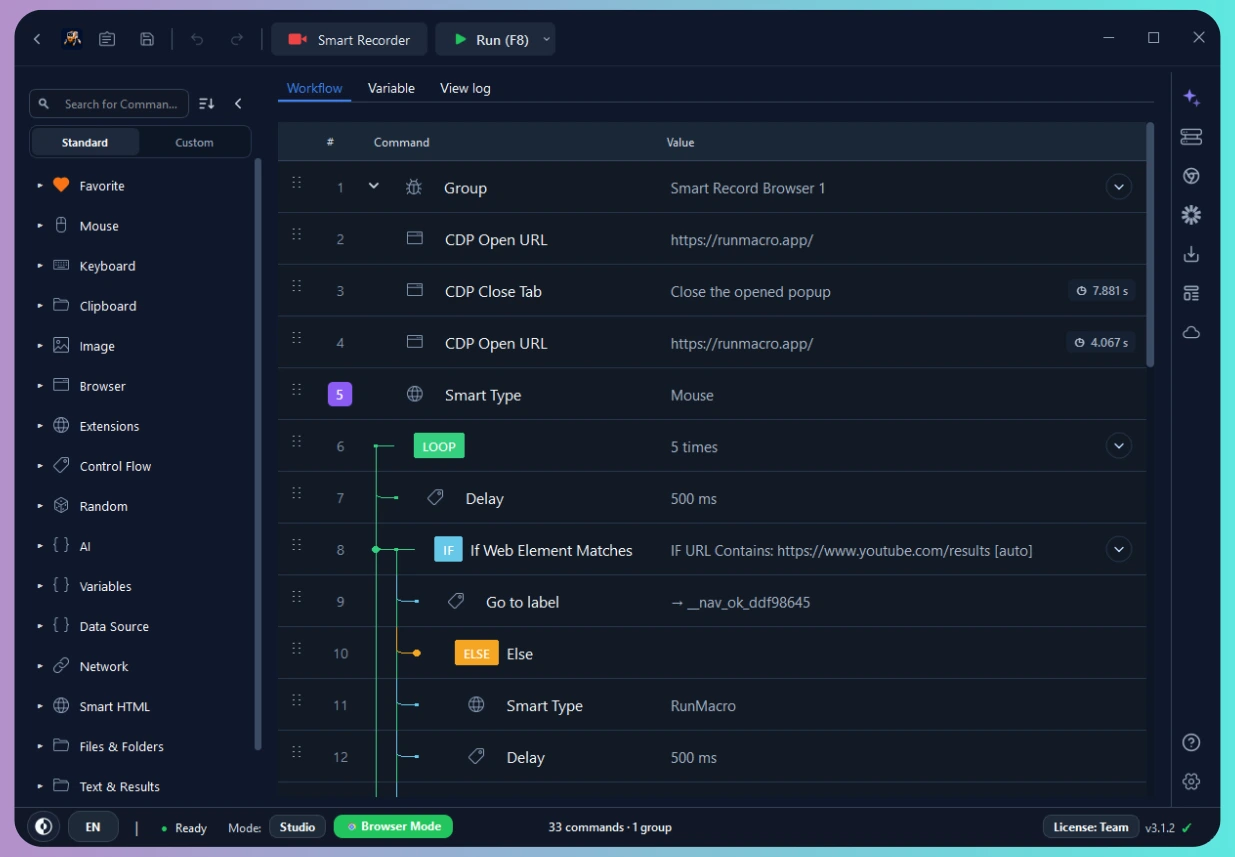
Verdict: The undisputed successor to TinyTask for Windows 11 and 10. It pairs the instant, zero-learning-curve recording of lightweight utilities with an enterprise-grade automation engine.
RunMacro (available at runmacro.app) was engineered specifically to solve the core architectural problems that plague legacy utilities: hook timeouts, coordinate drift, and security flags.
#### Key Architectural Strengths:
• Verified Code Provenance: Verified and distributed via the Microsoft Store and signed with an Extended Validation certificate. Passes Windows Defender SmartScreen with zero warnings.
• Deep Browser Integration via Chrome DevTools Protocol (CDP): Unlike TinyTask, which only knows screen coordinates, RunMacro can connect directly to Google Chrome, Microsoft Edge, and Brave via CDP. It clicks elements by CSS selector or XPath, inputs text directly into input fields, and handles single-page app (SPA) DOM changes—even if the browser window is behind other windows or minimized.
• True Multi-DPI Precision: Fully written with native Windows DPI awareness (Per-Monitor V2). It maps coordinates relative to active window client areas rather than the entire virtual desktop, guaranteeing that macros recorded on an external 4K monitor execute flawlessly on a 1080p laptop display.
• Micro-Footprint with Zero Mouse Lag: The recording engine consumes less than 35 MB of RAM and stays well below 0.5% CPU utilization during high-speed playback. Recorded mouse movements do not lag or stutter because the input injector bypasses slow WOW64 translation layers.
• Visual Node Editor + Hotkey Triggers: Provides an intuitive timeline where you can delete accidental clicks, adjust specific delay values, insert keyboard shortcuts, or add variable loops without editing a single line of raw code.
#### Limitations:
• Advanced browser automation features require Chromium-based browsers (Chrome, Edge, Brave, Opera).
#2. AutoHotkey (v2) — Best for Software Engineers and Technical Scripters
Verdict: The industry standard for programmatic Windows automation, but demands programming proficiency.
AutoHotkey (AHK) is an open-source scripting language designed specifically for Windows hotkeys and input automation. In late 2022, AutoHotkey completed its transition to v2, which cleaned up its messy, legacy syntax into a consistent, object-oriented language.
#### Key Architectural Strengths:
• Limitless Logic: AHK can execute conditional logic (if/else), query dynamic data via REST APIs, parse JSON and CSV files, interact with the Windows Registry, and call raw Win32 DLL functions via DllCall().
• Minimal Resource Footprint: The compiled AHK runtime is exceptionally lightweight, running comfortably in under 10 MB of memory with near-zero idle CPU cycles.
• Community Ecosystem: Decades of active community development mean solutions exist for almost any niche edge case you might encounter.
#### Limitations:
• No Native GUI Recorder Out-of-the-Box: AHK v2 does not come bundled with a graphical recorder. To automate a workflow, you must manually inspect window classes using the included "Window Spy" utility and hand-write lines of code:
```autohotkey
; Example AHK v2 coordinate script
#Requires AutoHotkey v2.0
CoordMode "Mouse", "Client"
^!j:: {
if WinExist("ahk_exe notepad.exe") {
WinActivate
Click 120, 240
Send "System status report: OK"
}
}
```
• Steep Learning Curve: Not suited for operators, non-programmers, or anyone needing to record a 15-second task immediately.
• Frequent Antivirus Flags: Generic AHK scripts compiled to .exe files using standard wrappers frequently trigger heuristic flags from corporate endpoint detection and response (EDR) platforms like CrowdStrike and SentinelOne.
#3. Pulover’s Macro Creator — Feature-Rich GUI for AHK, but Cluttered
Verdict: A powerful visual bridge to AutoHotkey, hampered by a crowded, retro interface.
Pulover’s Macro Creator (PMC) is an open-source automation tool that functions as a visual front-end for AutoHotkey. It records keyboard strokes and mouse paths, automatically translating them into an interactive visual spreadsheet of actions.
#### Key Architectural Strengths:
• Visual Expression Builder: PMC exposes AHK commands—such as loops, pixel searches, variable assignments, and window controls—through drop-down menus and modal forms.
• Export to AHK Script: Workflows recorded visually inside PMC can be exported directly as standard .ahk scripts, allowing developers to scaffold automations visually before refining them in code.
• Pixel & Image Searching: Includes built-in utilities for scanning screen coordinates for specific bitmap patterns before dispatching an action.
#### Limitations:
• High Visual Complexity: The user interface features dozens of toolbars, buttons, and settings panes. For a user seeking a straightforward TinyTask replacement, PMC can feel overwhelming.
• Based on Legacy AHK v1 Syntax: Under the hood, much of PMC was constructed around the deprecated AutoHotkey v1 engine, creating compatibility friction with modern v2 libraries.
• Occasional UI Freezes During Long Recordings: Recording continuous mouse movements over long periods can cause the UI thread to buffer heavily, leading to noticeable interface lag.
#4. Jitbit Macro Recorder — Capable Legacy Enterprise Tool, but Expensive
Verdict: Reliable commercial macro utility for desktop workflows, but priced out of reach for general users.
Jitbit Macro Recorder is a longstanding staple in enterprise IT environments. It combines an accessible UI recorder with an integrated code viewer that allows for line-by-line manual timing adjustments.
#### Key Architectural Strengths:
• Stand-Alone EXE Compiler: Jitbit allows users to export recorded macros as standalone, self-executing .exe binaries that run on machines without Jitbit installed.
• Smart Jitter Compensation: The playback engine can automatically filter out erratic mouse jitter while preserving deliberate clicks, resulting in smoother cursor reproduction.
• Command Insertion Menu: Users can insert specific system commands into a recording, such as launching shell scripts, waiting for file locks to clear, or checking if an application process is active.
#### Limitations:
• Cost-Prohibitive: A single-user license starts at $69, scaling to $99+ for commercial installations, with zero free tiers for everyday users.
• No Modern Browser Architecture: Does not utilize Chrome DevTools Protocol (CDP). Browser interactions rely on optical pixel verification or coordinate injection, both of which easily break when web page layouts change.
• Outdated UI: The desktop application remains styled around legacy Windows 7/Vista design standards.
#5. OP Auto Clicker — Lightweight for Simple Clicks, but Missing Macro Logic
Verdict: Excellent for raw, rapid-fire button clicking; completely incapable of handling sequences or workflows.
OP Auto Clicker is an open-source, ultra-minimalist mouse clicking tool. It is widely used in gaming communities (such as Roblox or Minecraft) and for basic hardware testing.
#### Key Architectural Strengths:
• Single-File Portable Binary: Requires no installation; downloads as a tiny standalone executable.
• High Repetition Rates: Capable of dispatching mouse click events at extreme frequencies (down to 1 millisecond intervals) with negligible system load.
• Simple Hotkey Toggle: Press a designated F-key to start clicking at the current cursor position; press it again to stop.
#### Limitations:
• Not a Macro Recorder: Cannot record keyboard strokes, multi-step mouse sequences, drag-and-drop operations, or conditional steps.
• No Relative Coordinate Support: Clicks only at the current cursor position or at a single fixed screen coordinate.
• Easily Detected by Input Guards: The uniform timing intervals can trigger anti-cheat software and bot-detection heuristics unless manual timing variance is enabled.
4. Head-to-Head Comparison Table
| Feature / Criteria | ★ RECOMMENDEDRunMacro | AutoHotkey (v2) | Pulover's Macro Creator | Jitbit Macro Recorder | OP Auto Clicker |
|---|---|---|---|---|---|
| Pricing | Free tier ($0/mo) / Pro from $7/mo | Open Source (Free) | Open Source (Free) | $69 - $99+ (One-time) | Open Source (Free) |
| Security & Provenance | Microsoft Store Verified, EV-Signed | Open Source (Executable) | Open Source (Unsigned) | Proprietary Signed | Open Source (SourceForge) |
| Windows 11 Multi-DPI | Native Per-Monitor V2 | Supported (Via Script) | Partial (Depends on settings) | Basic Scaling | N/A (Current Pos Only) |
| Background Execution | Yes (CDP & UIA) | Yes (Via Win32 Control APIs) | Yes (Partial ControlClick) | No (Hardware Hijack) | No |
| Browser DOM / CDP | Yes (Native Chrome/Edge) | No (Requires External Lib) | No | No | No |
| Timing Accuracy | Sub-millisecond (QPC) | Microsecond Precision | Millisecond-level | Millisecond-level | 1ms Minimum Tick |
| Visual Workflow Editor | Yes (Modern UI) | No (Text Code Only) | Yes (Dense Spreadsheet) | Yes (Legacy Ribbon) | No |
| Learning Curve | Zero (30-second setup) | High (Requires Coding) | Medium-High | Low-Medium | Zero (Single Function) |
5. Step-by-Step Tutorial: Migrating Your First Workflow to RunMacro in 30 Seconds
Migrating an existing workflow from a brittle, coordinate-based TinyTask setup to RunMacro requires no programming knowledge. Here is how to create a stable, production-ready desktop automation from scratch.
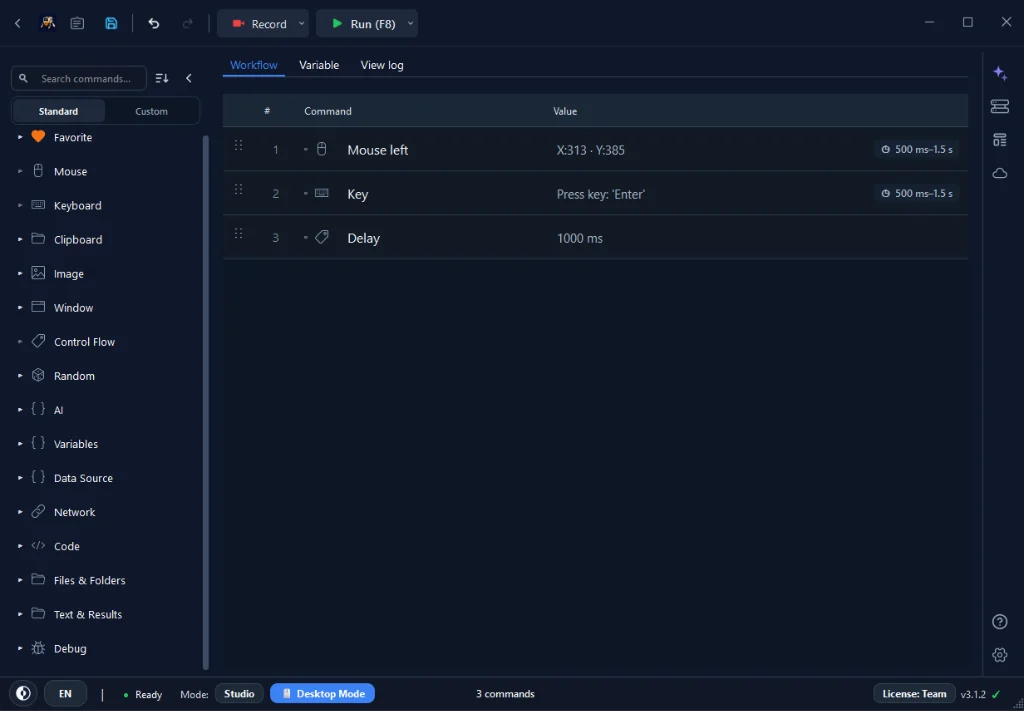
Step 1: Launch and Choose Your Engine
Open RunMacro. On the clean control dashboard, select your target execution mode:
• Desktop Mode: Ideal for native Windows applications (Excel, ERP software, legacy Win32 utilities, games).
• Browser Automation Mode (CDP): Ideal for cloud portals, data entry forms, and web applications. It attaches directly to Chromium processes, bypassing coordinate dependencies entirely.
Step 2: Record the Workflow
1. Click the primary Record button (or press the global hotkey F9).
2. Perform your target workflow naturally: click navigation buttons, enter form data, and switch windows.
3. RunMacro’s background capture driver records your actions using high-precision timestamps while automatically filtering out sub-pixel cursor jitters.
4. Press F10 (or your configured stop hotkey) to halt recording.
Step 3: Polish the Action Timeline
Once recorded, your steps appear in an intuitive, clean visual editor:
• Remove Accidental Inputs: Easily delete stray clicks or unneeded keypresses with one click.
• Tune Delays: Convert fixed 2,000ms pauses into smart waits (e.g., *Wait for Window to Appear*), preventing desynchronization if your network or computer experiences momentary lag.
• Coordinate Locking: If automating a desktop app, check *Lock to Window Client Area*. Even if the application window moves across monitors, clicks will land on target.
Step 4: Configure Loop Conditions and Run
In the execution sidebar:
1. Select your loop conditions: run a specific number of times (e.g., 50 iterations), run on a set timer, or loop continuously until stopped with a hotkey.
2. Select your playback speed (1x, 2x, or Instant Execution).
3. Press Run (F5). RunMacro executes the sequence with zero mouse lag, keeping your workflow completely in sync.
6. The Verdict: Choose the Right Tool for Your Workflow
The era of relying on unsigned, 32-bit legacy tools like TinyTask is over. On Windows 11, continuing to use abandoned macro recorders exposes your machine to coordinate drift, random hook timeouts, and significant security risks from clone download portals.
Here is the straightforward decision path:
1. Choose AutoHotkey if you are a software engineer or system administrator who prefers writing text scripts, manages complex conditional branching, and doesn't mind maintaining code bases.
2. Choose OP Auto Clicker if all you need is a brute-force auto-clicker for a single button and have no need for multi-step sequences.
3. Choose RunMacro for everything else. It delivers the speed and simplicity TinyTask once promised, backed by a modern, safe architecture: Per-Monitor V2 DPI scaling, Chrome DevTools Protocol integration, high-resolution timers, and verified Microsoft Store distribution.
Experience Modern Windows Automation with RunMacro
Stop battling broken coordinate drift and antivirus alerts. Upgrade to RunMacro’s zero-lag desktop and browser automation engine today.
• 14-Day Free Pro Trial: Instant access to advanced browser automation, unlimited loop controls, and background execution. No credit card required.
• Free Forever Tier: $0/month for Desktop Mode on 1 device. Perfect for replacing TinyTask immediately.
• Pro Tier: Just $7/month (billed annually), $9/month (billed every 6 months), or $12/month (month-to-month).
• Team Tier: $29/month for up to 5 devices with shared workflow configurations.
Runs natively on Windows 11 and Windows 10 with full Microsoft SmartScreen verification.