
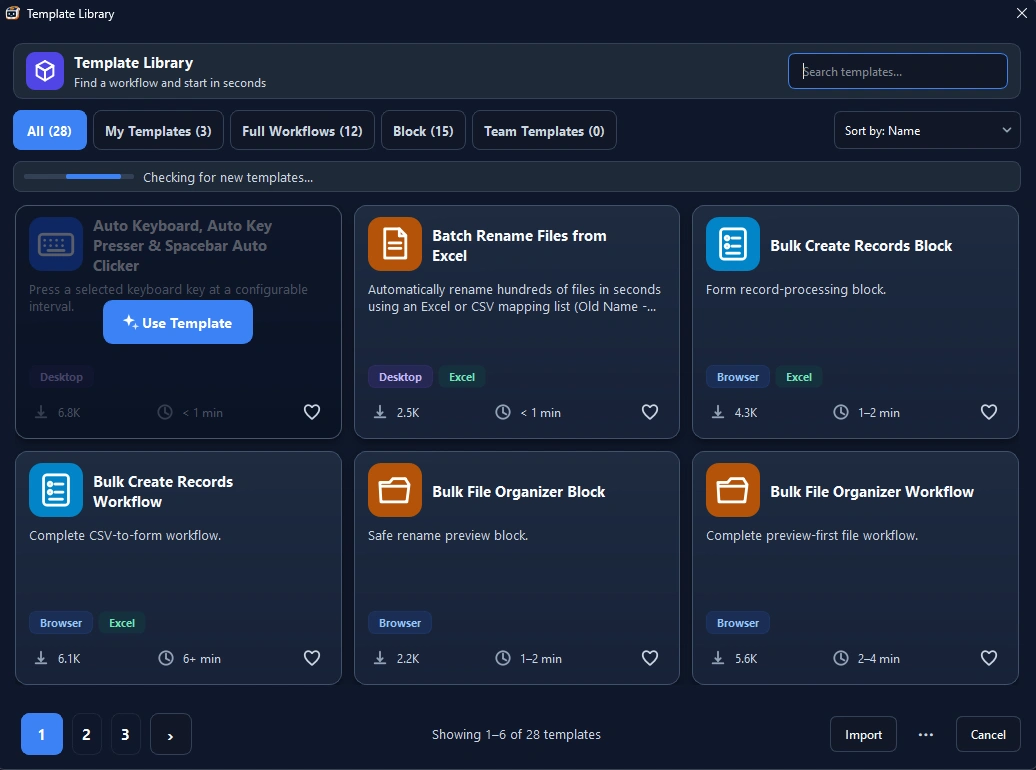

Building automation workflows from scratch every time you have a repetitive task can be time-consuming. Whether you are filling out hundreds of web forms, entering spreadsheet data, or repeating keyboard shortcuts, having pre-built macro program templates allows you to start automating in seconds.
In this guide, we explore the most useful macro program templates for Windows, how they work, and how you can import them into RunMacro with a single click.
What is a Macro Program Template?
A macro program template is a pre-configured sequence of automation commands designed for a specific use case. Instead of manually recording mouse coordinates, keypresses, delays, and loops from zero, you simply load a template, customize your parameters (like file paths or target URLs), and press Run.
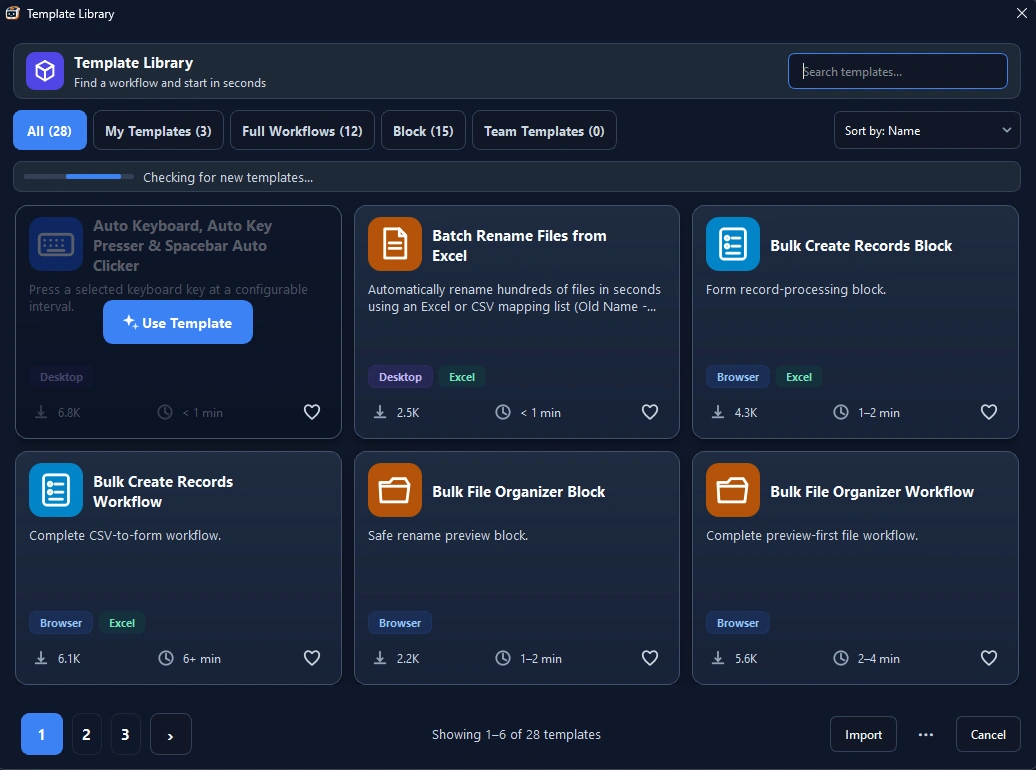
Key benefits include:
• Instant deployment: Start automating immediately without trial-and-error configuration.
• Zero coding required: Fully visual, customizable step-by-step actions.
• Consistency: Avoid human error in long, repetitive data entry loops.
5 Essential Macro Program Templates for Daily Automation
1. Auto Keyboard & Spacebar Auto Clicker
• Best for: Gaming automation, keeping software active (anti-idle), and repetitive testing routines.
• How it works: Loops custom key combinations (e.g., Space, Enter, F5, or Ctrl+S) at customizable millisecond intervals without straining your hardware or fingers.
• Time saved: Eliminates hours of manual key holding and repetitive tapping.
2. Batch Rename Files from Excel
• Best for: Photographers, accountants, and administrative teams organizing large sets of documents.
• How it works: Reads mapping tables from Excel or CSV (original filename → new filename), locates files in the target directory, and safely renames them in seconds with built-in validation.
• Time saved: 1–2 hours per batch of several hundred files.
3. Bulk Create Records Workflow (CSV-to-Form)
• Best for: Data entry clerks, operations teams, and CRM/ERP marketing workflows.
• How it works: Reads rows sequentially from an Excel or CSV file, switches to your active browser tab, populates corresponding web input fields, clicks Submit, and loops automatically until all rows are processed.
• Time saved: 2–3 hours per 500 records.
4. Bulk File Organizer Workflow
• Best for: Organizing daily reports, sorting monthly PDF invoices, and archiving media files.
• How it works: Scans specified folders, categorizes files based on extension, naming pattern, or creation date, and automatically moves them into designated subdirectories.
• Time saved: 30–45 minutes of daily manual file sorting.
5. Smart Element-Based Auto Clicker
• Best for: Repetitive UI button clicks on dynamic web pages, web portals, and desktop applications.
• How it works: Unlike basic coordinate-based auto clickers, this template identifies web elements by their selector or visual anchors, ensuring reliable clicks even if the window changes size.
• Time saved: Completely hands-off clicking with zero misclicks.
How to Load and Use Templates in RunMacro
Using pre-built templates in RunMacro takes less than 30 seconds:
1. Open RunMacro: Launch the application on your Windows PC.
2. Access Template Library: Navigate to File > Open macro template... (or press Ctrl+T).
3. Select Your Template: Browse the built-in library or search by keyword (e.g., *Form Auto-Fill*).
4. Insert or Open: Click Open to create a new workflow, or Insert below to append steps into your current macro.
5. Customize Parameters: Set your spreadsheet paths or click intervals, then click Run.
Summary & Next Steps
Using macro program templates is the fastest way to eliminate repetitive desktop and browser tasks. Instead of writing complex scripts, leverage ready-to-use workflows to boost your daily productivity.
Ready to try these templates?
👉 Download RunMacro for Windows for free and explore the built-in Template Library today!