1
1. Choose Your Folder & Mode
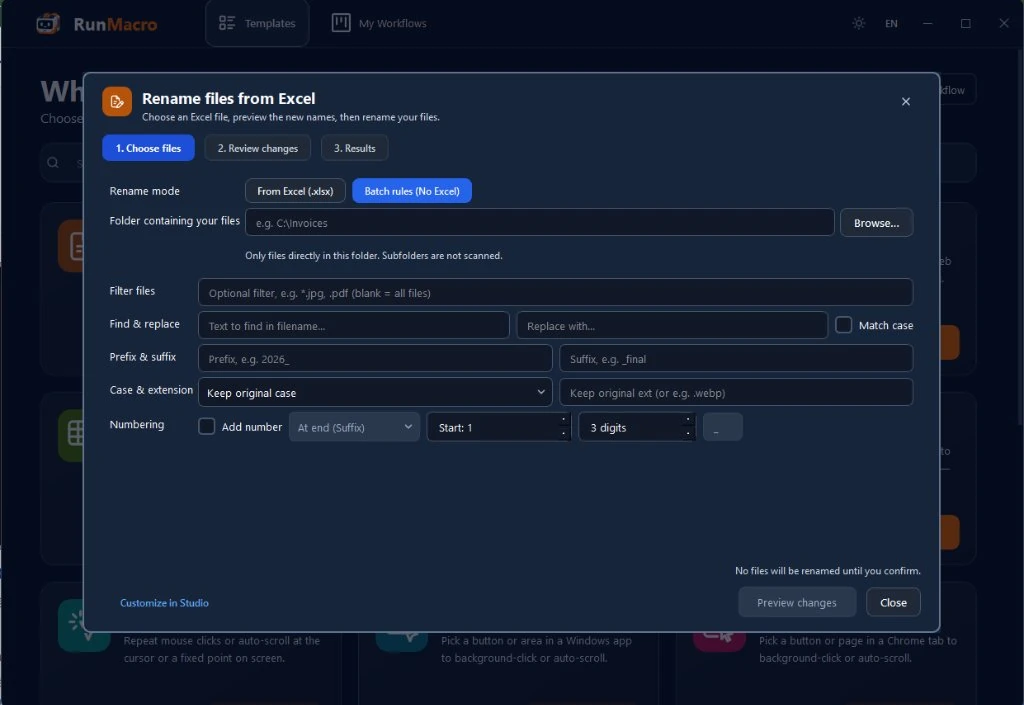
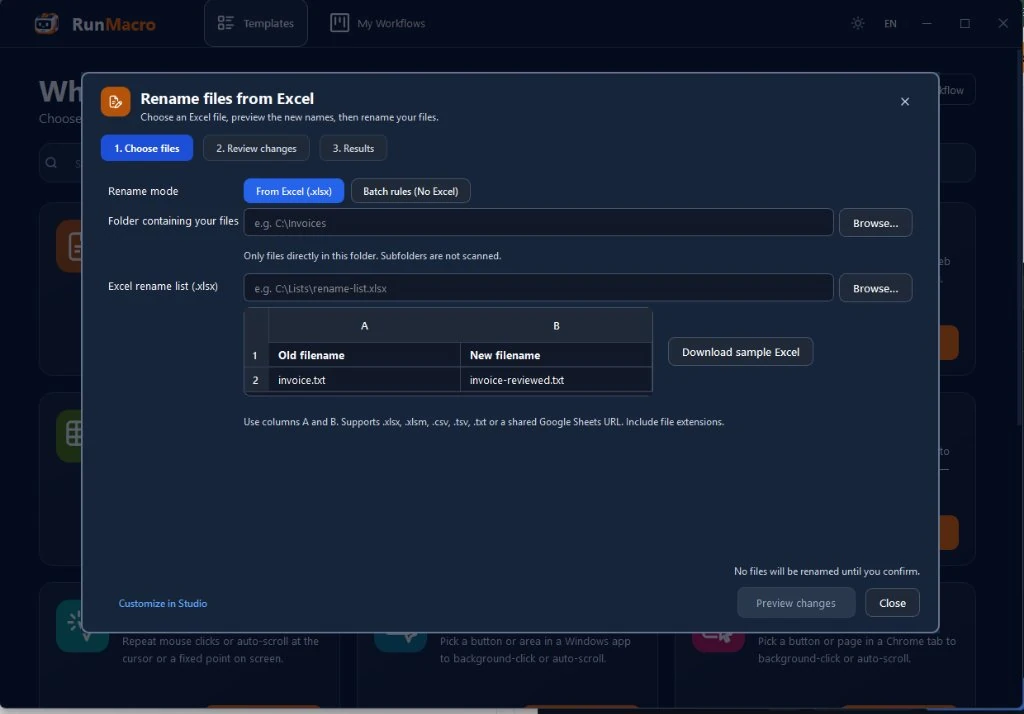
Select the Windows folder containing your files and pick Batch Rules (no spreadsheet needed) or Excel (.xlsx) mapping.
Rename hundreds of files in one folder cleanly without writing PowerShell scripts. Switch seamlessly between instant Batch Rules (find & replace, prefix/suffix, lowercase/UPPERCASE/kebab-case, sequential 001 numbering, extension change) and Excel (.xlsx) A-to-B mapping, verify every Old-to-New change in a read-only preview table, and apply without overwriting existing files.
100% Free on Windows · Batch Rules + Excel (.xlsx) · Read-only preview before touch · Zero overwrites
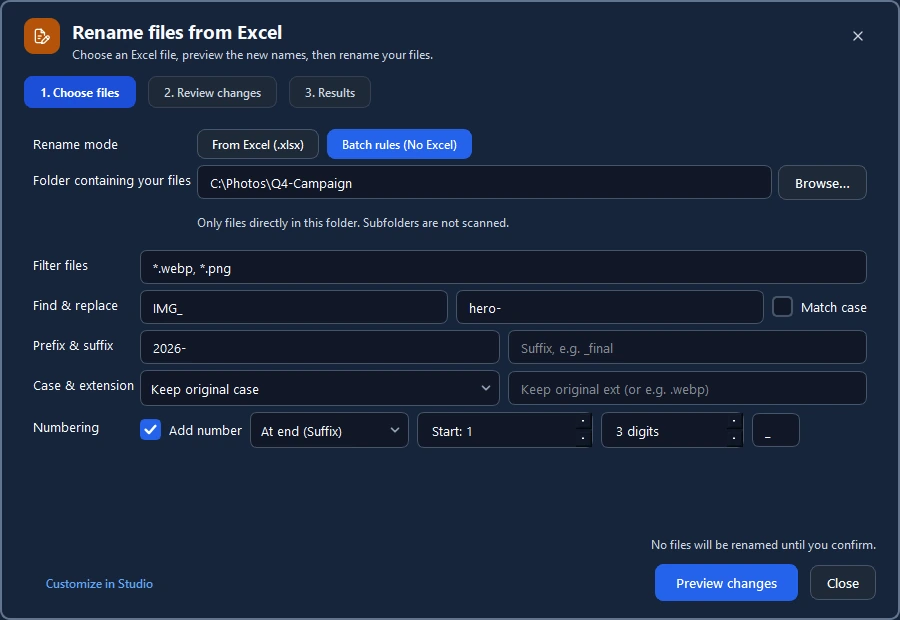
Pick rules or an Excel mapping, review every single output name, then confirm.
Select the Windows folder containing your files and pick Batch Rules (no spreadsheet needed) or Excel (.xlsx) mapping.
Configure find/replace, prefix/suffix, case transform, sequential numbering, or Excel A-to-B columns, then inspect the full read-only preview table.
RunMacro re-verifies every file on disk, executes atomic renames cleanly, and lets you export the Old -> New audit log.
Handles everyday bulk numbering as cleanly as custom ERP/spreadsheet mappings.
Combine Find & Replace, Prefix/Suffix, Title/lowercase/UPPERCASE/kebab-case transforms, zero-padded sequential numbering (001, 002), and extension updates.
Need non-pattern names such as SKU numbers or customer IDs? Point to Column A (old name) and Column B (new name) for up to 20,000 rows.
Filter strictly by extension or wildcard (such as *.jpg, .pdf, or invoice*) while leaving unrelated files in the same folder untouched.
Zero files change during setup. Inspect every proposed Old -> New filename and resolve errors before the Rename button activates.
Blocks duplicate destination filenames, existing destination overwrites, swap chains, reserved Windows names (CON/NUL), and missing sources before touching disk.
Runs locally on Windows with zero cloud uploads; export the complete Old -> New log or save settings safely outside the source folder.
Pick Batch Rules for quick pattern transforms or switch to Excel (.xlsx) for row-by-row custom naming.
Rename photos, invoices, PDFs, and web assets in seconds directly inside RunMacro.
Ideal when new names come from accounting exports, client lists, or scraped product tables.
Replace repetitive F2 keystrokes and fragile command-line scripts.
Rename IMG_4021.JPG batches to clean lowercase product_001.webp or kebab-case SEO slugs in one previewed step.
Strip spaces or draft markers, add date prefixes like 2026-11_, and number scanned PDFs sequentially.
Match raw vendor filenames in Column A to official warehouse SKUs in Column B without manual copy-paste.
Target only *.png or *.pdf files via wildcard filter and normalize messy filenames to clean web-safe kebab-case.
Because file renames modify directory names on disk directly:
Test your rules or Excel mapping on a small copy folder to confirm the exact output format you expect.
Confirm the read-only preview shows 0 need attention before clicking Rename.
Click Export log after completion to keep a clear Old -> New record outside the renamed folder.
Built natively for Windows NTFS folders and Excel workbooks.
Supports prefix/suffix, case normalization, sequential padding, and extension edits.
Column A old filename to Column B new filename across any sheet.
Validates Windows reserved names, collisions, chains, and file identities.
Included completely free offline in RunMacro Desktop Mode.
Transparent guardrails that protect your folders from unintended renames.
Scans direct files inside the chosen folder (symlinks and nested subfolders are skipped for safety).
Renamed files change directly in Windows NTFS. Test on a copy first and export the Old -> New audit log if you want a reversal record.
Target filenames already occupied in the folder or colliding with source names are flagged and blocked before execution.
See why visual pre-flight validation prevents costly rename mistakes.
| Factor | RunMacro Batch Rename | Manual Explorer F2 | PowerShell / CMD Script |
|---|---|---|---|
| Rules + Excel Together | Both built into one guided dialog | Slow 1-by-1 F2 or basic (1) numbering | Requires scripting & CSV parsing code |
| Read-Only Preview Table | Full Old -> New table with error reasons | No batch preview | Only if you script -WhatIf cleanly |
| Overwrite / Collision Safety | Blocks overwrites, duplicates & chains | Easy to misclick across files | Silent errors or broken partial runs |
| Audit Trail Log | 1-click Old -> New .txt export | None | Must implement custom logging |
Answers about renaming without Excel, numbering formats, safety checks, and free access.
Yes! Switch the Rename mode toggle at the top of the dialog to "Batch rules (No Excel)" to find/replace text, add prefixes or suffixes, change case (including SEO kebab-case), filter by *.jpg/.pdf, add 001 sequential numbering, or change file extensions directly.
Use "From Excel (.xlsx)" whenever destination names cannot be derived from a single text pattern—for example mapping random camera names or supplier files in Column A to specific SKU IDs or employee names in Column B.
No. Before executing anything, RunMacro checks for duplicate destination names, already-occupied filenames, rename chains, invalid Windows characters, and file identities—and blocks execution if any issue exists.
Yes. Batch Rename Files runs 100% offline on Windows 10 and 11 and is included free in RunMacro without a paid subscription.
By design, the guided Batch Rename dialog operates strictly on top-level regular files in your chosen folder so nested folders are never modified unexpectedly. For custom recursive flows, inspect the Studio Batch Rename command docs.

Open Batch Rename Files directly in RunMacro on Windows 10/11—use instant Batch Rules or an Excel mapping, inspect the read-only preview, and rename cleanly.