1
1. Choose Merge Mode & Source Folder
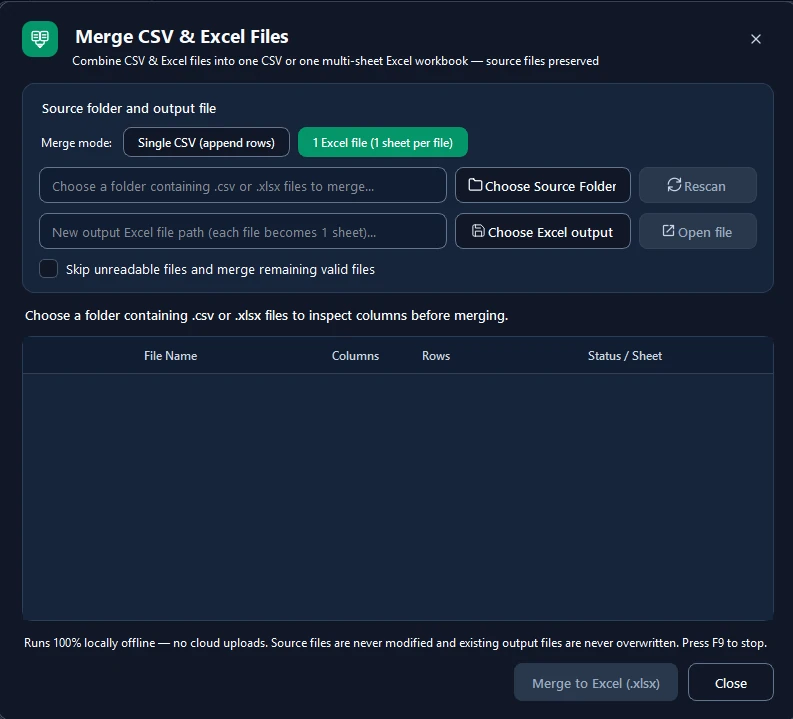
Select Single CSV (append rows) or 1 Excel file (1 sheet per file), then pick the Windows folder containing your .csv, .xlsx, or .xlsm files.
Combine dozens or hundreds of .csv, .xlsx, and .xlsm files locally on Windows—no cloud uploads, no repeated header rows in the middle of your data. Switch between appending matching schemas into one UTF-8 BOM CSV or combining differing files cleanly into one Excel workbook with one sheet per file, plus 1-click Open File when done.
100% Free & Offline · CSV + Excel (.xlsx/.xlsm) inputs · Single CSV or 1-sheet-per-file Excel output · Source files untouched
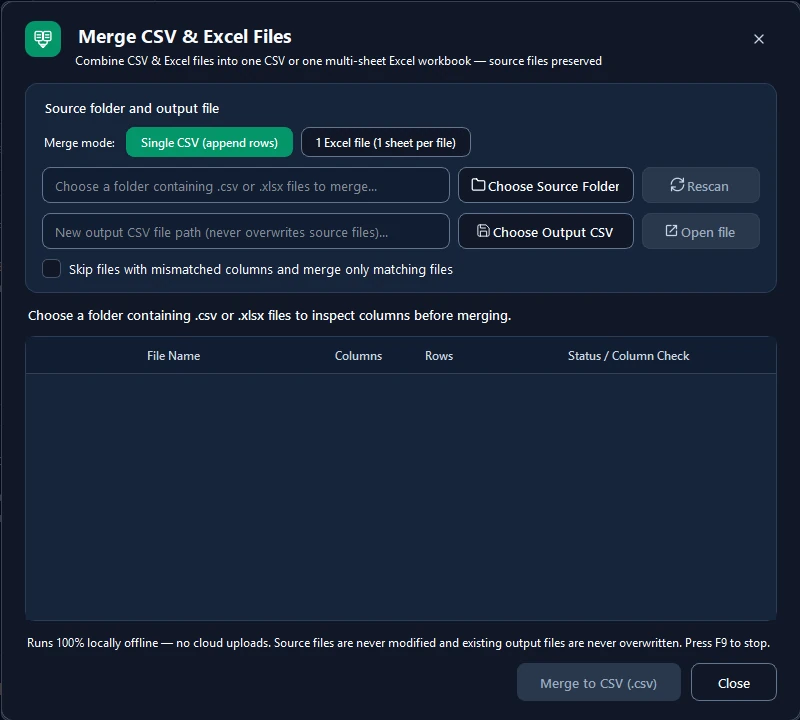
Pick your merge mode, inspect every file header upfront, and open your combined CSV or Excel workbook in one click.
Select Single CSV (append rows) or 1 Excel file (1 sheet per file), then pick the Windows folder containing your .csv, .xlsx, or .xlsm files.
Check missing, extra, or reordered columns (or preview sanitized worksheet names in Excel mode) and confirm a non-overwriting .csv or .xlsx output path.
Click Merge. RunMacro combines everything offline without touching source files, then lets you open the new file or output folder right from the window.
Designed to replace brittle command-line scripts, manual copy-pasting across Excel tabs, and risky online uploaders.
Scans mixed folders of CSV exports and Excel workbooks (reading each workbook’s active worksheet) while automatically ignoring temporary ~$ Excel lock files.
Writes the reference column header once at row 1 and appends only data rows across matching files—zero repeated headers inside your table.
Need to combine exports that have different column counts or headers? Put every valid file on its own sanitized worksheet inside one .xlsx workbook.
When appending into 1 CSV, flags missing, extra, or reordered columns per file and blocks silent mis-aligned merges unless you opt in to skip mismatched files.
Reads sources read-only, refuses overwriting any existing file, commits safely via temporary .part staging, and enables Open File as soon as the merge finishes.
Payroll, invoices, and customer exports stay on your Windows PC with zero upload MB caps, writing Excel-friendly UTF-8 BOM CSVs and formula-safe text cells.
Keep confidential spreadsheets local on Windows whether you need one flat CSV table or a multi-sheet Excel report.
Included completely free in RunMacro Desktop Mode with zero file upload caps.
Every run enforces non-destructive handling across both input folders and existing reports.
Need step-level CSV row reading or appending inside a custom automation flow? Explore RunMacro core CSV docs:
Choose Single CSV append for identical schemas, or 1-Sheet-per-File Excel for mixed reports.
Merge 30 daily exports into one flat monthly CSV without deleting repeated headers or copy-pasting spreadsheets by hand.
Use 1 Excel file (1 sheet per file) mode when Finance, Warehouse, and Marketing exports have completely different columns.
Spot immediately when one regional .csv or .xlsx dropped or renamed a column before merging into one master CSV import.
Combine comma CSVs, semicolon CSVs, and .xlsx files sharing the same header into one clean UTF-8 BOM CSV ready for Excel.
Three fast checks ensure your combined output matches what you expect:
Use Single CSV when schemas match; pick 1 Excel file (1 sheet per file) when files have different columns.
Check any flagged columns or sheet names and confirm RunMacro’s suggested _merged.csv / _merged.xlsx path.
Use the Open file button right beside Choose Output to inspect accents, sheet tabs, and row totals immediately.
Engineered for practical Windows spreadsheets and Excel compatibility.
Auto-detects UTF-8/BOM/UTF-16/CP1252 and , ; Tab delimiters; reads active sheet of Excel files.
Blocks mismatched columns by default in CSV mode, or gives every file its own Excel sheet.
100% offline local file access—no browser memory limit or cloud upload delay.
Included free in RunMacro Desktop Mode with zero usage or file count paywalls.
Know upfront what the guided merger covers and when custom Studio Excel commands fit better.
Scans top-level .csv, .xlsx, and .xlsm files inside the selected folder and reads the active/first worksheet of each Excel file. Recursive subfolders or multi-tab splitting need Studio steps.
In Single CSV mode, mismatched columns are flagged rather than guessed. If files have different schemas and you still want one workbook, switch to 1 Excel file (1 sheet per file).
If the chosen .csv or .xlsx output path already exists, pick a fresh filename—RunMacro blocks overwriting existing reports.
See why dual CSV/Excel support, schema checks, and offline privacy beat brittle alternatives.
| Factor | RunMacro Merge CSV & Excel Files | Online Merge Websites | CMD "copy *.csv out.csv" |
|---|---|---|---|
| Data Privacy & Size Cap | 100% offline on Windows (no upload) | Uploads sensitive files + MB caps | Offline on Windows |
| CSV + Excel Input & Multi-Sheet Output | Reads .csv/.xlsx; outputs 1 CSV or 1 sheet per file | Often single-format or paywalled | CSV only; corrupts binary .xlsx files |
| Duplicate Header & Mismatch Guard | Single header + flags missing, extra & reordered columns | Often shifts cells silently | Duplicates headers & corrupts shifted columns |
| Excel Unicode Rendering & Quick Open | UTF-8 BOM CSV + 1-click Open File button | Often breaks accented text | Copies raw encodings blindly |
Common questions about CSV + Excel inputs, 1-sheet-per-file mode, and offline safety.
Yes. RunMacro scans top-level .csv, .xlsx, and .xlsm files in your selected folder, reads the active worksheet of each Excel file, and lets you combine them into either 1 CSV (when headers match) or 1 Excel workbook with 1 sheet per file.
In Single CSV mode, RunMacro flags mismatched files and blocks silent corruption by default. Simply switch Merge mode to "1 Excel file (1 sheet per file)"—each file gets its own named worksheet cleanly without losing or shifting columns.
No. RunMacro opens source files strictly read-only, skips Excel ~$ lock files, refuses overwriting existing output files, and writes safely via a temporary .part file before finalizing.
Yes. RunMacro detects UTF-8 BOM, UTF-8, UTF-16, and Windows-1252 encodings across comma, semicolon, and tab delimiters, writes clean UTF-8 with BOM CSVs, and lets you open the finished file in one click.
Yes. Merge CSV & Excel Files is included free in RunMacro for Windows 10 and 11 and runs completely locally without uploading spreadsheet data.

Open Merge CSV & Excel Files directly in RunMacro on Windows 10/11—append matching tables into one clean CSV or place every file onto its own Excel sheet.