1
1. Pick a Screen Region or Image Folder
Drag once over any part of your screen—even unselectable desktop software dialogs or paused videos—or switch to Image folder (Batch OCR).
Extract text you cannot highlight from Windows desktop apps, locked PDFs, videos, or scanned images—100% offline with built-in Windows OCR. Pin a screen region once to copy text automatically, repeat scans with unchanged-text filtering and CSV/TXT logging, or batch-OCR an entire folder of images in one pass.
100% Free & Offline · Windows Native OCR · Pinned Region + Repeat/CSV Log + Batch Image Folder
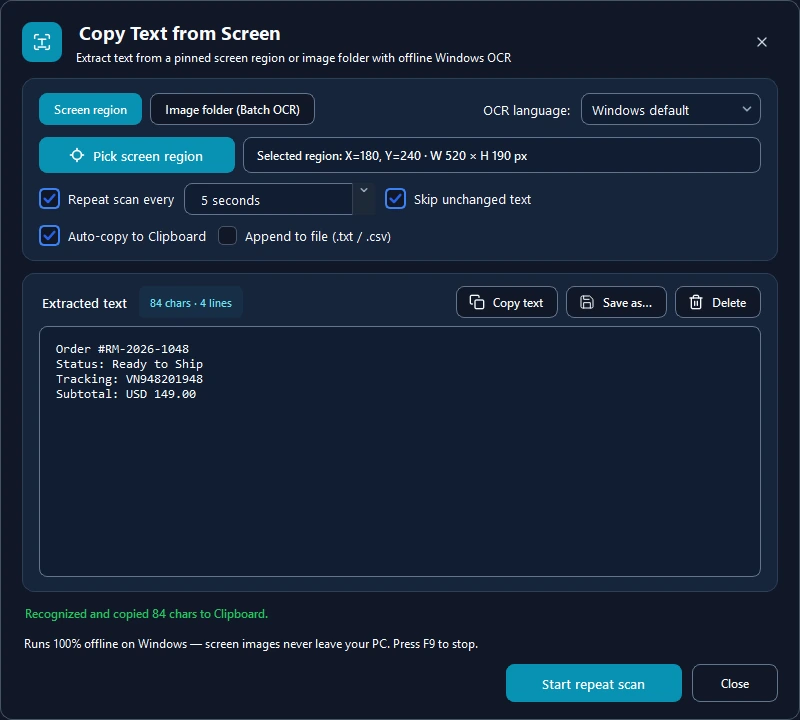
Pick a fixed screen rectangle or an image folder, choose your Windows OCR language, and capture clean editable text locally.
Drag once over any part of your screen—even unselectable desktop software dialogs or paused videos—or switch to Image folder (Batch OCR).
Keep Auto-copy to Clipboard enabled, optionally turn on Repeat scan every X seconds with Skip unchanged text, and pick a .txt or .csv output file.
Click Scan & Copy (or Start repeat scan). Review extracted lines immediately in the dialog, copy again, or open your saved .csv/.txt file.
Every control is tuned to eliminate manual re-cropping, duplicate clipboard spam, and cloud privacy risks.
Select your target area once with DPI-aware coordinates so you can rescan updated values in the exact same box with one click or an automatic timer.
Check a region every 1–3,600 seconds and log or copy only when the recognized text actually changes—ideal for status panels, logs, and live counters.
Push recognized text straight to Windows Clipboard and optionally append timestamped rows into a UTF-8 BOM CSV file ready for Microsoft Excel.
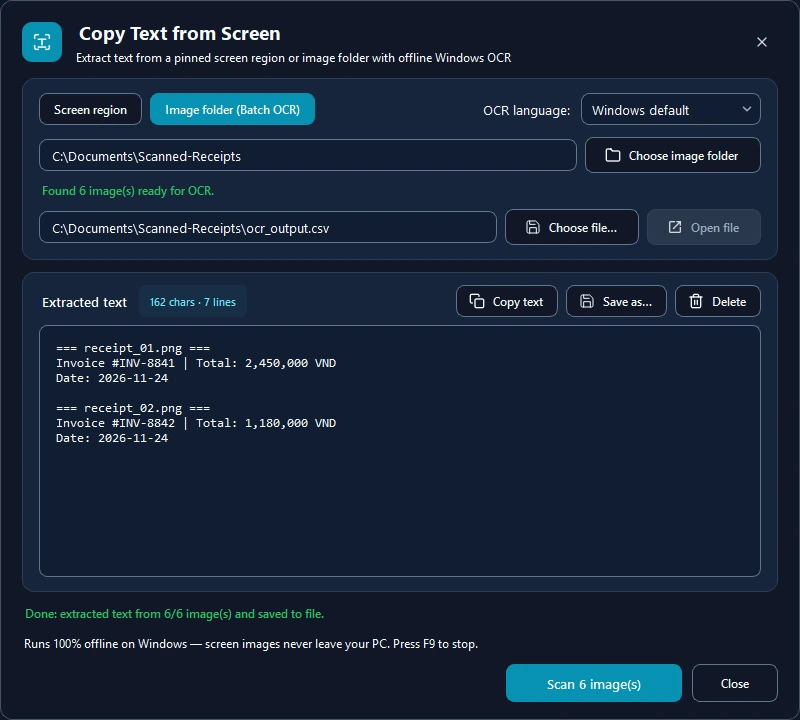
Switch to Image folder mode to scan all .png, .jpg, .bmp, .webp, and .tiff files in a directory and export combined text cleanly.
Powered directly by Windows Native OCR language packs—no Tesseract setup, no heavy Python model downloads, and crisp multi-language recognition.
Screenshots stay strictly inside your PC memory and are never uploaded to remote OCR servers. Press F9 anytime to stop repeat or batch scans immediately.
Capture live text off any Windows application window, or process folders of saved screenshots offline.
Built for live dashboards, unselectable app labels, error dialogs, and recurring screen checks.
Built for folders of screenshots, scanned receipts, photos of tables, or exported image slides.
Want to combine screen OCR with conditional IF steps inside a full Studio macro? Check out the Scan OCR docs:
Ideal when text is locked inside screenshots, legacy software, remote viewers, or video frames.
Grab invoice IDs, tracking numbers, configuration paths, or stack traces from legacy Windows utilities that block mouse selection.
Pin a readout box and let repeat OCR + Skip unchanged text record every new status update with timestamps into a CSV log.
Drag around a shared screen frame or tutorial video and paste clean text straight into your editor without retyping line by line.
Point Image folder mode at a directory of PNG/JPG captures and save one combined .txt or .csv summary offline.
Follow these three quick checks to confirm clean text recognition on your PC:
Click Pick screen region and drag tightly around readable dark-on-light or light-on-dark text—avoid excessive empty margin.
Leave Windows default or pick the exact Windows OCR language (for example English or Vietnamese) in the OCR language dropdown.
Check the Extracted text preview box once first; once punctuation and accents look right, enable repeat intervals or .csv appending.
Everything runs locally through Windows 10/11 Native OCR.
Multi-monitor & 100%–200% Windows scaling support with cooperative F9 stop.
Appends UTF-8 BOM CSV rows or reads top-level image folders offline.
Zero cloud upload and no external Tesseract download required.
Included completely free in RunMacro Desktop Mode with zero page or scan limits.
Know upfront what Windows Native OCR handles well and what sits outside this template.
If non-English characters look wrong, install that language’s Text Recognition (OCR) feature in Windows Settings → Time & language → Language & region, then reopen the dialog.
Image folder mode reads .png, .jpg, .jpeg, .bmp, .webp, and .tiff files directly. For PDF pages, display the page on screen for region capture or convert pages to images first.
Zooming the source window slightly or capturing crisp high-contrast regions dramatically improves numeric and symbol accuracy; handwritten notes are not guaranteed.
Purpose-built for repeatable screen extraction and local spreadsheet logging rather than one-off manual crops.
| Capability | RunMacro Screen OCR | One-Shot Snipping / PowerToys | Online Image-to-Text Sites |
|---|---|---|---|
| Re-scan pinned region without re-dragging box | Yes (remembers X, Y, W, H coordinates) | No (must redraw selection box every scan) | No (screenshot + upload file every time) |
| Repeat scan interval + Skip unchanged text | Built in (1–3,600s + F9 instant stop) | Not supported | Not supported |
| Append timestamped rows directly to CSV / TXT | Yes (UTF-8 BOM CSV ready for Excel) | Clipboard only | Manual copy or download per file |
| Batch OCR an entire image folder offline | Yes (one-click folder scan + CSV/TXT export) | Single capture only | Upload file caps / daily paywalls |
| Data privacy (screen images stay on PC) | 100% local Windows Native OCR | Local Windows OCR | Uploads sensitive screenshots to remote servers |
Honest technical answers about offline Windows OCR, languages, privacy, and exports.
Yes. Copy Text from Screen is a 100% free Desktop Mode guided task in RunMacro with no scan count caps, no Pro paywall, and no account required.
Never. Recognition runs completely offline on your own Windows 10 or Windows 11 PC using the built-in Windows OCR API.
Snipping Tool and PowerToys are great for a single manual crop to clipboard, but you must redraw the rectangle every time. RunMacro pins your screen region, supports timed repeat scans that ignore unchanged text, logs every new read straight to a .csv or .txt file, and can batch-OCR a whole folder of images.
Yes—provided the matching Windows OCR language pack is installed under Windows Settings → Time & language → Language & region. Once installed, choose it in the OCR language dropdown inside the dialog.
This template reads live screen regions and local image files (.png, .jpg, .jpeg, .bmp, .webp, .tiff). If you have scanned PDFs, either view them on screen for pinned-region OCR or export pages as PNG/JPG images first and use Image folder mode.
If you need conditional branches or full automation workflows, use Scan OCR, IF OCR, or OCR Capture inside RunMacro Studio. Look for the Scan OCR guide in Docs for full command options.

Open the free Copy Text from Screen template in RunMacro on Windows 10/11 to capture pinned screen regions, log changes to CSV/TXT, or batch-OCR image folders locally.