1
1. Paste the Public Webpage URL
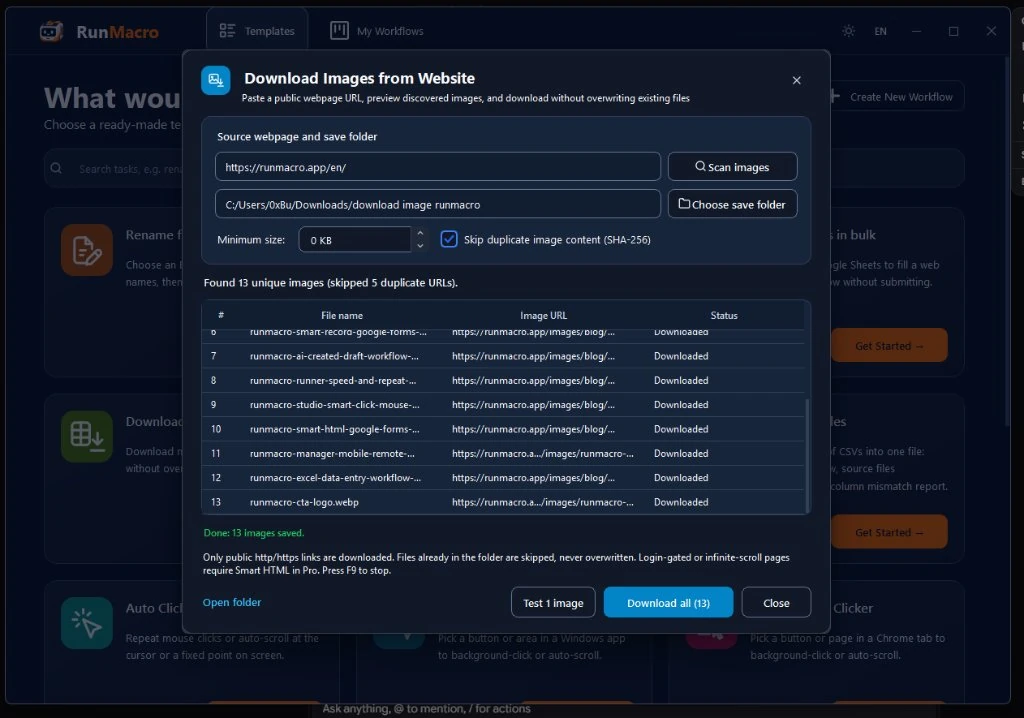
Open Download Images from Website in RunMacro, paste an http:// or https:// page link, and choose your destination folder.
Paste a public webpage URL into RunMacro, scan and preview every discovered image in one table, filter out small icons by KB size, deduplicate identical files with SHA-256, and save them locally without overwriting anything already in your folder.
Included free in Desktop Mode · URL & SHA-256 deduplication · Never overwrites existing files · Press F9 to stop
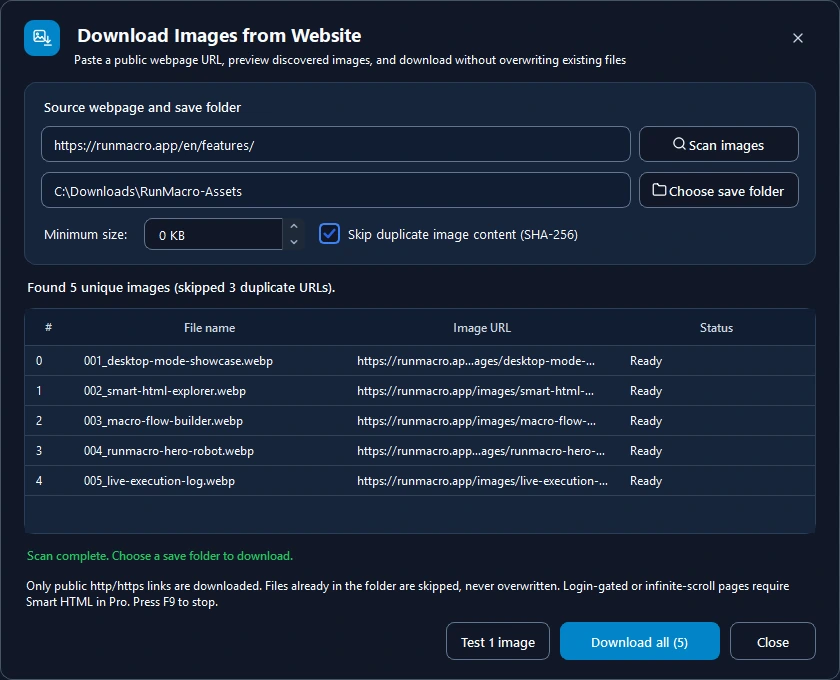
Scan, verify discovered URLs, test with a single image first, and save cleanly to disk.
Open Download Images from Website in RunMacro, paste an http:// or https:// page link, and choose your destination folder.
Click Scan images to collect unique links from img, srcset, picture, og:image, and CSS backgrounds before downloading a single byte.
Use Test 1 image first or click Download all. Existing filenames stay untouched, HTML error responses are rejected, and F9 stops anytime.
Designed to avoid broken fake files, duplicate clutter, and accidental overwrites.
Reads standard img src, lazy-load attributes (data-src, data-original), picture sources, og:image, and picks the largest srcset candidate automatically.
Removes repeated image links during scan and compares SHA-256 content hashes before saving so identical images from different URLs are never saved twice.
Streams to temporary .part files and verifies the destination folder before moving into place—files already in your folder are skipped untouched.
Checks response headers and file signatures so login redirects or 404 HTML pages never get saved as corrupted .jpg or .png files.
Set a KB threshold (such as 20 KB or 50 KB) to skip tiny UI badges, spacer dots, or 1x1 tracking pixels automatically.
Verify your output folder and filename format with a single test image first, or press F9 mid-batch to stop cleanly with zero partial .part files left.
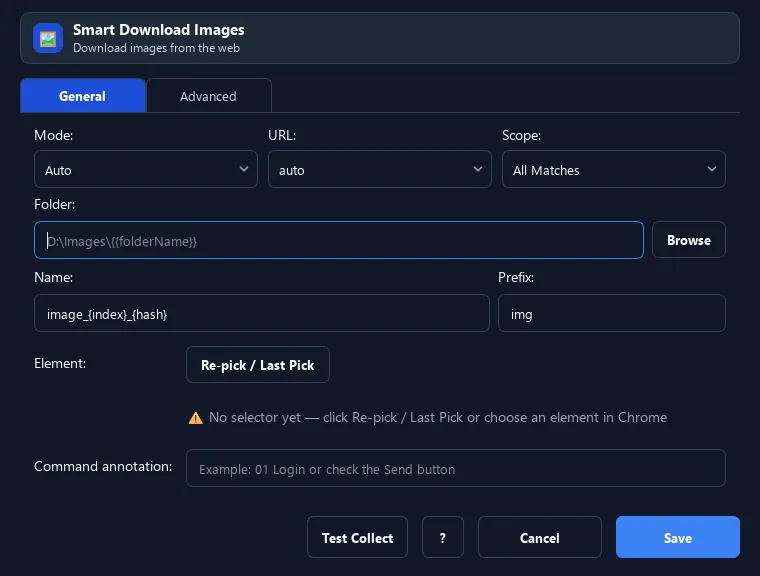
Use the free guided task for public pages, or upgrade to Smart HTML in Chrome when a site requires login or scrolling.
Included completely free in RunMacro Desktop Mode with zero coding or browser setup.
When images live behind a sign-in session or JavaScript lazy-loading grid, switch to Browser Mode.
Save hours of manual Right-Click > Save As across research, catalog, and content tasks.
Collect clean illustrations, charts, and hero media from public tutorials and knowledge base articles you maintain.
Pull full-resolution gallery shots from public showcase pages while automatically skipping UI thumbnails below your KB threshold.
Quickly mirror published product photos or blog graphics from live pages into an organized local Windows backup folder.
Verify every image URL resolves to real image bytes rather than broken HTML error responses before launch.
Two fast checks prevent unwanted tiny icons or wrong destination folders:
Inspect the discovered filenames and image URLs in the preview table before downloading anything.
Verify the first image opens cleanly in your target folder and matches the resolution you expect.
If small UI icons appear, raise the minimum KB filter before clicking Download all.
Built natively for Windows workflows and clean local storage.
Detects extensions from URLs, Content-Type headers, and file headers automatically.
Skips duplicate links in HTML and identical binary image payloads on disk.
Runs locally inside RunMacro on Windows with safe filename sanitization.
Included free without a license; Pro unlocks live-DOM Chrome Smart HTML capture.
Know upfront what the free guided tool handles and when Pro Browser Mode is required.
The free guided task fetches initial HTML/CSS without executing client-side JavaScript. Sites requiring login cookies, Cloudflare challenges, or infinite scroll require Pro Smart HTML in Chrome.
Files sharing a name or SHA-256 hash already present in your destination folder are skipped—pick an empty folder if you want a fresh copy.
Only extract and store images from websites where you have permission or license rights, and avoid overwhelming third-party servers.
See why controlled preview + hash deduplication saves cleanup time.
| Capability | RunMacro Guided Task | Manual Right-Click Save | Typical Browser Extension |
|---|---|---|---|
| Preview Before Saving | Full table + 1-image test run | One file at a time | Often dumps everything blindly |
| Existing File Safety | Never overwrites existing files | Manual rename prompts | Frequently overwrites or appends (1) |
| Fake HTML Rejection | Blocks HTML login/error pages cleanly | Manual inspection required | Often saves broken .jpg HTML files |
| Duplicate Content Check | URL + SHA-256 content hash | None | URL string only at best |
Common questions about image extraction, Chrome live-DOM mode, and file safety.
Yes. The guided Download Images from Website desktop task is included free in RunMacro for Windows 10 and 11 with no credit card required. If you need live-DOM extraction from logged-in Chrome tabs, that uses Smart HTML in Pro (14-day free trial included).
Never. Each image streams into a temporary .part file first, checks existing filenames and SHA-256 hashes in your destination folder, and skips anything already saved.
The free guided task scans initial public HTML without running Chrome JavaScript or scrolling. For React/infinite-scroll galleries or logged-in portals, use RunMacro Smart HTML Download Images in Browser Mode on Chrome.
RunMacro inspects the HTTP Content-Type and file signature before saving, rejects HTML responses cleanly, and marks that row as an error instead of writing corrupted files to disk.
Yes — follow the Smart HTML Download Images documentation guide for extracting images directly from open Chrome elements and paginated workflows.

Open Download Images from Website directly in RunMacro on Windows 10/11—paste a URL, preview every candidate, and download with zero overwrites.