 RunMacro
RunMacro Documentation
Create your first robot, then go further as needed.
Clear step-by-step guides to create, run, and improve robots for repetitive computer work.
Optical Character Recognition from Screen & Images (Scan OCR) in RunMacro
Scan OCR is an offline optical character recognition command in RunMacro that extracts text from screen regions, image files, or clipboard and assigns it directly to variables.
Prerequisites#
- Screen region or image file contains visible, legible text.
Supported modes#
- Desktop Mode — Captures DPI-aware bitmap via Windows GDI and processes through local OCR engine.
What it does#
The Scan OCR command leverages a high-speed, fully offline Optical Character Recognition engine optimized for accented Vietnamese and English text. It extracts characters from a custom screen region, a disk image file (PNG, JPG, WEBP, BMP), or an image stored in clipboard. Scanned text is cleansed and output into workflow variables, system clipboard, or appended to text logs.
Screenshots & video#
When to use it#
- Reading OTP codes or numerical captchas from secured apps that prohibit text selection or copying.
- Extracting transaction amounts, bank account numbers, or order IDs from payment receipts and screenshots.
- Reading data from virtualized remote desktops (RDP, Citrix, AnyDesk, TeamViewer) where UIA is inaccessible.
- Digitizing scanned paper documents and invoice snapshots into structured digital text.
When not to use it#
- Desktop controls exposing native text via UIA (use Smart Get Text for 100% precision and 10x speed).
- Standard web pages (use Smart HTML DOM text extraction).
Configuration steps#
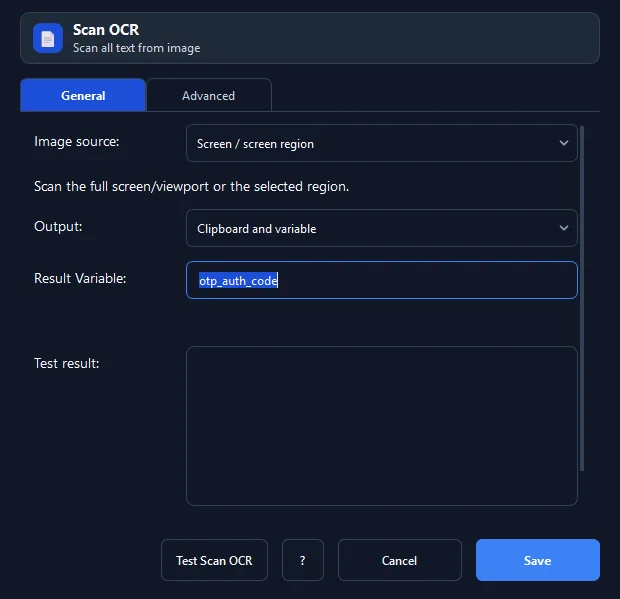
- In RunMacro, open the Image › Scan OCR command.
- Select the Source: Screen region, Image file, or Clipboard.
- If selecting screen, click Pick Region and drag a bounding box around the text area.
- Select the Output target: variable, clipboard, both, or file.
- Specify the Result variable name (default
ocr_text). - Click Save. During execution, detected text is stored in variable
{ocr_text}.
Every option explained#
Expected result#
The recognized text string is saved to the specified variable or clipboard without external third-party tools.
Real example#
Example: Scan 6-digit OTP code from screen popup#
- Add a Scan OCR command following the OTP request step.
- Click Pick Region and draw a box around the OTP display area.
- Set Result Variable to
ma_otp. - Add an Extract Regex command with pattern
\d{6}to isolate the 6 digits. - Use Smart Type to fill the captured OTP into the verification input.
Limitations and failure cases#
- Heavily stylized handwriting or calligraphy may yield reduced confidence scores.
- Heavily compressed or low-bitrate JPEG artifacts degrade accuracy.
Tips & common mistakes#
Verification details#
commands/capture.py· verified 2026-09-30