
RunMacro Documentation
Create your first robot, then go further as needed.
Clear step-by-step guides to create, run, and improve robots for repetitive computer work.
Breakpoints and step-by-step debugging (F9 / F10) in RunMacro
Breakpoints and single-stepping (F9/F10) let you pause macros before target commands, inspect live variables, and step line-by-line.
Prerequisites#
- The workflow is opened in RunMacro Studio editor.
- The bottom Variables panel tab is visible to observe state changes upon pausing.
Supported modes#
- Desktop Mode
- Browser Mode
- RunMacro Runner
What it does#
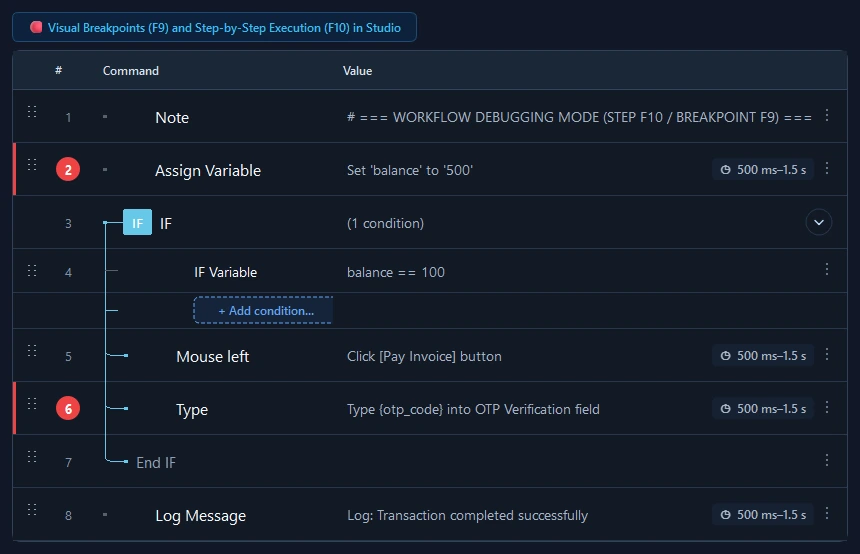
The Breakpoint and Step-by-Step Debugging engine delivers an intuitive, IDE-grade troubleshooting experience right in the RunMacro Studio workflow table. Users can click any row number in the gutter column or press F9 / Ctrl+B to toggle a vibrant red circular breakpoint badge with accent highlights. When execution reaches that row, the runner automatically pauses before executing the command, raises and restores the Studio window, and instantly refreshes the bottom Variables watch panel with live runtime values. Users can then press F10 to step forward command-by-command or resume playback, keeping .pmacro project files completely pristine.
Screenshots & video#
When to use it#
- Isolating why a calculated variable or extracted string is drifting at a specific step in the workflow.
- Inspecting UI state and live data immediately before triggering critical actions (e.g. submitting payments or deleting records).
- Stepping through newly created macros command-by-command using F10 to verify mouse and keyboard actions.
- Observing how loop variables and extracted payloads transform across iteration cycles.
When not to use it#
- Unattended server execution (clear breakpoints before production deployment).
- Pausing workflows specifically for manual user interactions (use Pause instead).
Configuration steps#
- Open the workflow in RunMacro Studio.
- Click the row number gutter on target command row, or select it and press F9 (or Ctrl+B). A vibrant red circle badge appears.
- Press Run Macro.
- Upon reaching the breakpoint, execution pauses before the command, Studio restores to the front, and the Variables panel refreshes live.
- Press F10 (or the Step toolbar button) to execute exactly one command, or press Resume to run normally.
- To remove breakpoints, click the red badge again or choose Clear All Breakpoints from the context menu. Save.
Every option explained#
Expected result#
The runner pauses execution immediately prior to the breakpoint row, raising Studio and enabling F10 step debugging.
Real example#
Example: Set breakpoint before form submission and step through#
- Set a breakpoint on the "Confirm" Click command using F9.
- Run macro; execution automatically halts right before clicking.
- Inspect filled form fields and variable values in the Variables watch tab.
- Press F10 to observe the click executing, after which execution pauses again.
Limitations and failure cases#
- Breakpoints are ephemeral studio session state; closing the app discards transient breakpoints without modifying files.
- Step execution via F10 requires interactive Studio desktop sessions and is unsupported in headless CLI mode.
Tips & common mistakes#
.pmacro project files completely unchanged.Verification details#
core/macro_runner.pyui/workflow_editor.py