
RunMacro Documentation
Create your first robot, then go further as needed.
Clear step-by-step guides to create, run, and improve robots for repetitive computer work.
Multi-condition IF block (AND/OR, Else If) in RunMacro
The IF command evaluates one or more logical expressions using AND/OR rules to branch workflow execution across dedicated code paths.
Prerequisites#
- Required evaluation variables are declared or extracted prior to the check.
- Logical branching rules (AND or OR mode) are clearly defined.
Supported modes#
- Desktop Mode
- Browser Mode
- RunMacro Runner
What it does#
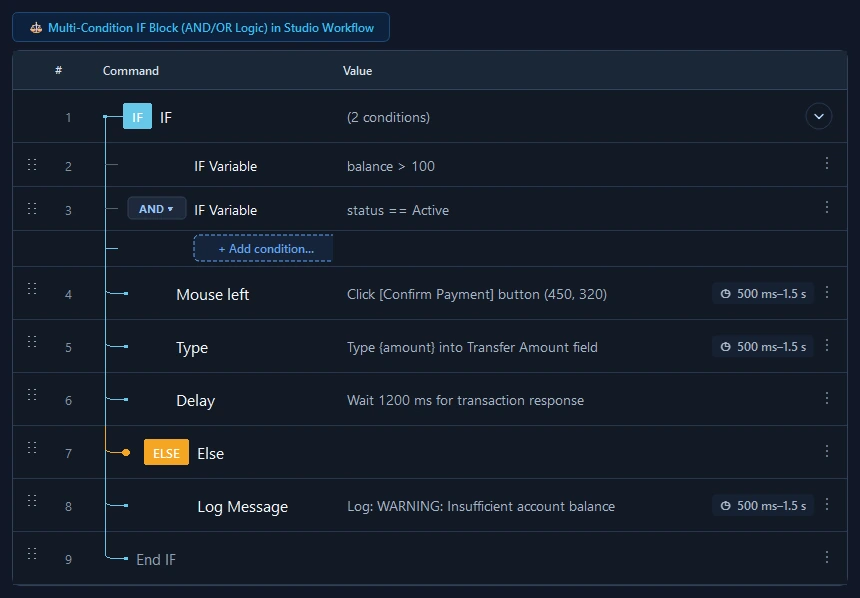
The IF command opens a multi-clause logical condition block. Users can chain multiple evaluation rules using AND (All conditions met) or OR (Any condition met), comparing variable values against strings, numbers, or emptiness checks. An IF block can be further expanded with Else If branches, a fallback Else block, and is cleanly closed with End If.
Screenshots & video#
When to use it#
- Evaluating multiple criteria simultaneously before acting (e.g. balance > 0 AND status = "Ready").
- Handling cascading multi-path decisions using structured IF -> Else If -> Else blocks.
- Validating input parameters or extracted data rows before proceeding with dangerous tasks.
When not to use it#
- Repeating actions a fixed number of times (use Loop or For Each instead).
- Checking pure DOM element states in browsers (prefer Smart HTML IF).
Configuration steps#
- Add a Control Flow › IF command to the workflow.
- Select the evaluation mode: Match ALL (AND) or Match ANY (OR).
- Add condition rows: pick target variable, comparison operator (=, !=, >, <, contains...), and reference value.
- (Optional) append Else If branches for alternative checks or Else for fallbacks.
- Place target commands inside each corresponding block branch. Close with End If. Save.
Every option explained#
Expected result#
The runner executes commands within the first matching condition branch and jumps past End If when finished.
Real example#
Example: Verify account balance and active status#
- Insert IF with match mode AND.
- Row 1: variable {balance} > 100.
- Row 2: variable {status} = "Active".
- Inside true branch: proceed with transaction.
- Close with End If.
Limitations and failure cases#
- Numeric comparisons attempt auto-casting; non-numeric values fall back to lexicographical string ordering.
- Omitting the terminating End If causes workflow indentation hierarchies to become corrupted.
Tips & common mistakes#
Verification details#
commands/control_flow.py