
Automate Google Sheets via API in RunMacro
The Google Sheets Action command posts to an Apps Script Web App to delete a row, update a cell, or append a row on Google Sheets.
Prerequisites#
- Add Google Sheets Action to the macro.
- Prepare the data or target that Google Sheets Action will use.
Supported modes#
- RunMacro Runner
What it does#
The Google Sheets Action command posts to an Apps Script Web App to delete a row, update a cell, or append a row on Google Sheets. The returned result drives IF/ELSE branching.
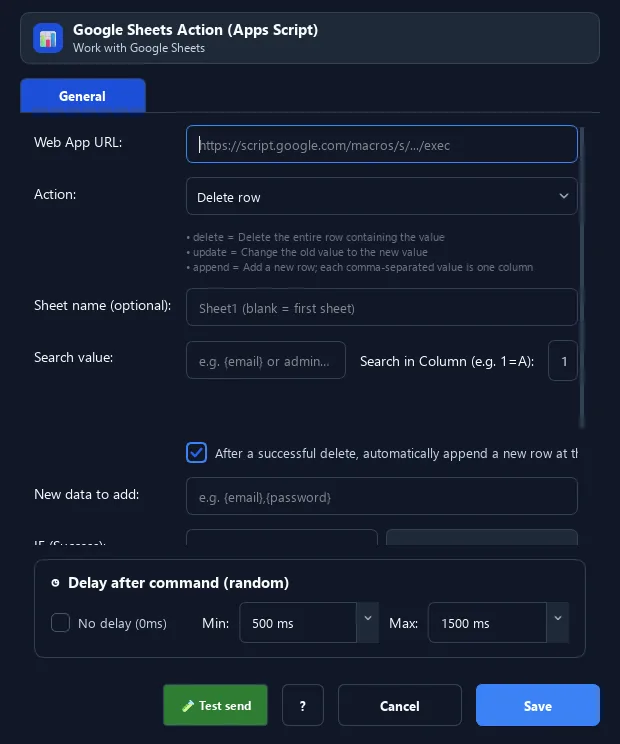
Screenshots & video#
When to use it#
- Mark/delete a used account on the Sheet.
- Update status after processing a row.
- Write results (new accounts) to the Sheet.
When not to use it#
- Do not use it before Sheet access is granted or when multiple runners require transactional row updates.
Configuration steps#
- Create an Apps Script Web App for the Sheet and get its URL.
- Add a Network › Google Sheets Action command, paste the Web App URL.
- Choose the action: Delete / Update / Append; set the search value, columns, and new value.
- Set IF/ELSE labels. Save.
Every option explained#
Expected result#
After execution, Google Sheets Action completes the described action and makes its result available to the next step.
Real example#
Example: delete a used account from the Sheet#
- Google Sheets Action, action Delete, search
{email}in Column 1. - IF label =
deletedto continue. - ELSE =
erroron failure.
Limitations and failure cases#
- API quota, authentication, sheet/column names, and schema changes can fail or write to the wrong location.
Tips & common mistakes#
You must create an Apps Script Web App that handles the actions (delete/update/append) and returns JSON with
status: success.Combine with Random Online Text (reading the Sheet) to build a fetch → process → update account flow.
Web Manager Data Queue: You can simply paste a public Google Sheet link (with "Anyone with the link can view" access) to import rows into the queue without setting up Apps Script.
Verification details#
commands/network.py