Auto mouse scroll in RunMacro
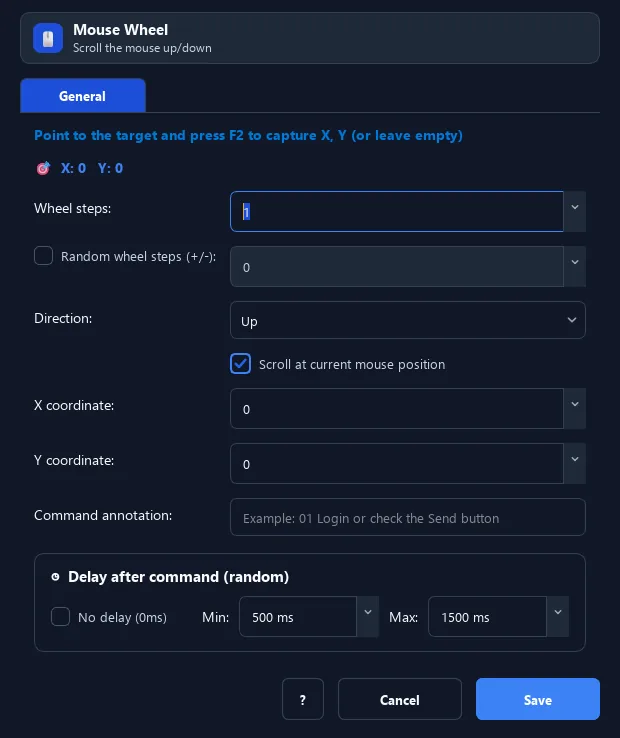
Mouse Wheel sends the configured number of scroll notches in the selected direction at the cursor or configured coordinates.
Prerequisites#
- The page or scrollable region is visible.
- The cursor or coordinates are inside the region that receives scrolling.
Supported modes#
- Desktop Mode
- Browser Mode
What it does#
The Mouse Wheel command auto-scrolls the wheel up or down by a number of notches at a position you choose (or the current cursor spot).
Screenshots & video#
When to use it#
- Scroll a page or long list to reveal content to act on.
- Scroll down to trigger lazy-loading before finding/clicking.
- Scroll inside a specific area (chat box, table) instead of the whole page.
When not to use it#
- An exact jump to a specific element is required.
- The target region does not accept scrolling at the selected position.
Configuration steps#
- Add a Mouse › Mouse Wheel command.
- Choose the direction: Up or Down.
- Enter the number of notches.
- (Optional) set the scroll point with
F2; leave empty to scroll at the current position. - Save.
Every option explained#
Expected result#
The target region scrolls in the configured direction by the selected notch count.
Real example#
Example: scroll to the bottom to load more#
- Add a Mouse Wheel, direction Down, 10 notches.
- Set a 500ms delay so the page can load.
- Repeat a few times for infinite-scroll pages.
Limitations and failure cases#
- Actual distance per notch depends on the application and scroll region.
- Dynamically loaded content may require an additional wait after scrolling.
Tips & common mistakes#
To scroll precisely to an element, pair with Find Image after scrolling to confirm it is visible.
In Browser Mode, the scroll is sent via Chrome/CDP so it does not take over your real mouse.
Verification details#
commands/mouse.py