Auto hold click in RunMacro
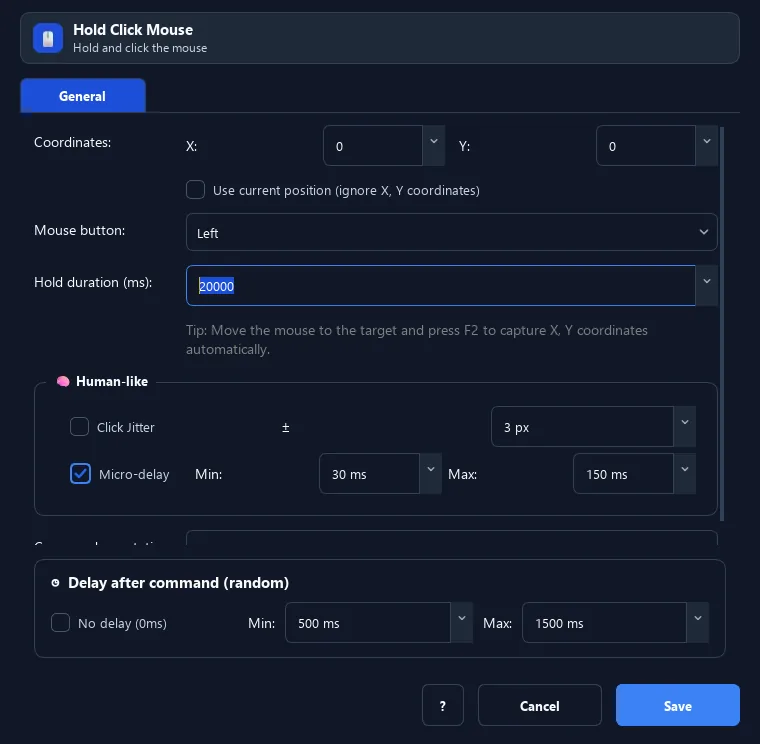
Hold Click keeps the selected button pressed at configured coordinates or the current position, then releases it automatically.
Prerequisites#
- The target application is ready for a held mouse action.
- The position, button, and hold duration are configured.
Supported modes#
- Desktop Mode
What it does#
The Hold Click command auto-holds a mouse button at a set position for a duration you choose (e.g. 2 seconds), then releases it automatically.
Screenshots & video#
When to use it#
- Games that need a held button to charge or keep moving.
- Hold to trigger a long-press menu.
- Any action that needs press-and-hold for a while.
When not to use it#
- A drag must pass through multiple coordinates; use Mouse Button Down/Up with Mouse Move.
- Press and release events need separate control.
Configuration steps#
- Add a Mouse › Hold Click command.
- Set coordinates with
F2, or enable Use current position. - Choose the mouse button.
- Enter the hold time (ms) — e.g.
2000= 2 seconds. - Save.
Every option explained#
Expected result#
The selected mouse button is held for the configured duration and then released.
Real example#
Example: hold left click for 3 seconds in a game#
- Add a Hold Click, aim at the target with
F2. - Choose the Left button.
- Enter hold time
3000(3 seconds). - Save and run — RunMacro holds for 3 seconds then releases.
Limitations and failure cases#
- The action depends on window state and pointer position.
- The hold duration does not guarantee that the target application has finished processing its response.
Tips & common mistakes#
Time is in milliseconds:
2000 = 2 seconds. Press the RunMacro stop hotkey to interrupt.For drag-and-drop (hold then move), use Mouse Button (Down/Up) with Mouse Move instead of Hold Click.
Verification details#
commands/mouse.py