 RunMacro
 Docs
RunMacro Documentation
Create your first robot, then go further as needed.
Clear step-by-step guides to create, run, and improve robots for repetitive computer work.
Automate Desktop Dropdown & ComboBox Selection (Smart Select) in RunMacro
Smart Select Dropdown automates selecting items in desktop ComboBoxes via Windows UI Automation using exact text or dynamic variables.
Prerequisites#
- Target desktop application displays the target ComboBox or dropdown list.
Supported modes#
- Desktop Mode — Selects items via UIA SelectionItemPattern and ExpandCollapsePattern.
What it does#
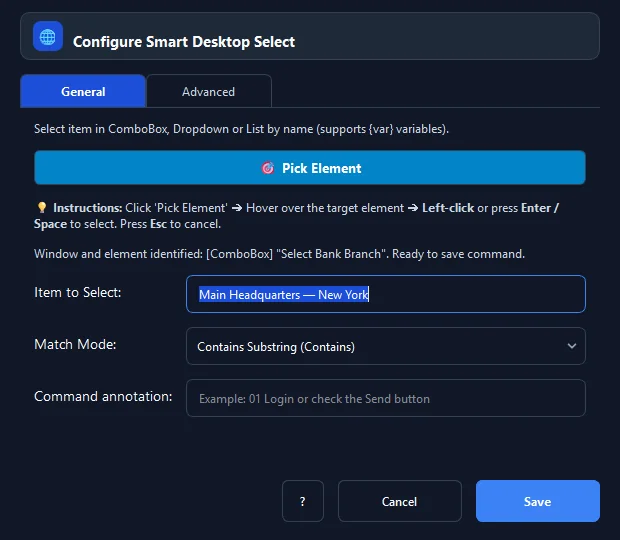
The Smart Select Dropdown command selects target items in desktop ComboBoxes, DropdownLists, or ListBoxes using UIA ExpandCollapsePattern and SelectionItemPattern.Select(). You simply provide the target item text or a dynamic variable {item_name}, and RunMacro locates and activates the item directly without requiring manual mouse hover, clicking open, or manual scrolling.
Screenshots & video#
When to use it#
- Selecting provinces, cities, or bank branch locations from long dropdown lists containing hundreds of items.
- Selecting currencies, payment methods, or shipping terms in retail POS and ERP applications.
- Switching report views, filter categories, or fiscal years in desktop accounting software.
- Batch processing customer records where each entry requires a distinct dropdown item extracted from an Excel file.
When not to use it#
- HTML <select> elements in web browsers (use Smart HTML).
- Right-click context menus (use Smart Click with Right Click strategy).
Configuration steps#
- In RunMacro, open the Mouse › Smart Select Dropdown command.
- Click 🎯 Pick Element and click the target ComboBox on your desktop application.
- In Item Text, type the target label (e.g. New York) or a dynamic variable
{city}. - Select Match Mode: exact or contains.
- Set the Timeout (ms) for item search (default 2000ms).
- Click Save to insert the command into your workflow.
Every option explained#
Expected result#
The specified item is selected and the ComboBox displays the updated value.
Real example#
Example: Select bank branch driven by Excel data variable#
- Use Get Data Row to load the branch name into variable
{branch}. - Add a Smart Select Dropdown command.
- Pick the 'Branch' ComboBox inside the banking software.
- Set Item Text to
{branch}and match mode to contains. - Execute — the dropdown automatically selects the exact branch without manual menu hovering.
Limitations and failure cases#
- Custom OwnerDraw controls lacking UIA list children may require arrow keystroke navigation.
Tips & common mistakes#
When item names include prefixes or trailing codes, contains mode ensures reliable selection.
If the dropdown is an autocomplete search input, consider combining with Smart Desktop Type.
Verification details#
commands/smart_desktop_select.py· verified 2026-09-30