Automate Smart Desktop UI Click in RunMacro
Smart Click is an advanced desktop automation click command that directly targets UI elements via Windows UI Automation rather than fixed pixel coordinates. It eliminates coordinate drift when apps move, resize, or display at different DPI settings.
Prerequisites#
- The target desktop application is running on screen.
- The element has been captured using the Pick Element tool.
Supported modes#
- Desktop Mode — Resolves controls directly via Windows UI Automation and Win32 APIs.
What it does#
The Smart Click command directly detects desktop user interface elements (buttons, inputs, icons, tabs, menus) using Microsoft UI Automation (UIA) and Win32 APIs. Unlike fixed-pixel coordinate clicking (which easily misses when windows move, screens scale, or resolutions change), Smart Click tracks and clicks the exact target element automatically.
Screenshots & video#
When to use it#
- Click buttons, switch tabs, or interact with controls in desktop apps (Excel, ERP, accounting software, Telegram, WinForms, WPF, Electron, etc.).
- When application windows frequently move, resize, or display across monitors with different DPI/resolutions.
- When you need reliable double-click or right-click directly on target UI controls.
- When you want smart element resolution with automatic visual fallback.
When not to use it#
- Automating web browsers (use Smart HTML or Chrome CDP instead).
- 3D games or custom canvas applications that do not expose standard UIA accessibility trees.
Configuration steps#
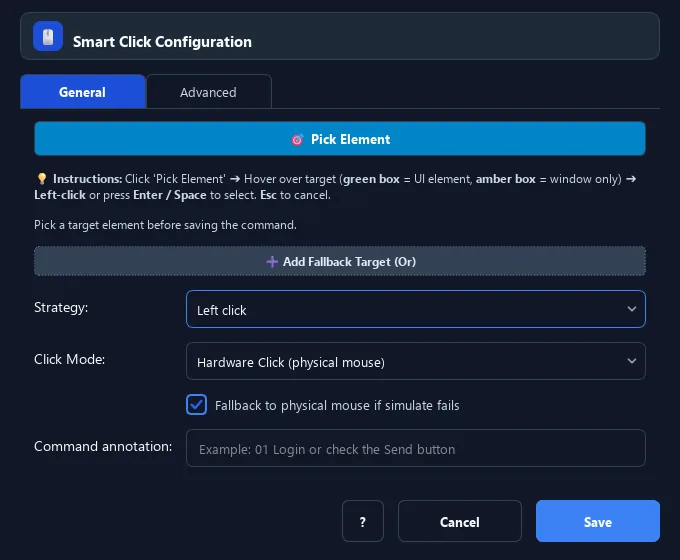
- In RunMacro, open Mouse › Smart Click (located at the very top of the Mouse group).
- Click 🎯 Pick Element — the RunMacro window hides temporarily and a live green highlight tracker follows your cursor.
- Hover over the target button or control in your desktop app, then left-click (or press
Enter / Space) to pick. - The dialog reappears showing the detected element name and control type.
- Choose the Strategy: Left click, Right click, or Double click.
- In the Advanced tab (optional), configure fallback policy (Coordinate / None) or attach a fallback image.
- Click Save to insert the Smart Click command into your workflow.
Every option explained#
Expected result#
RunMacro brings the target window to foreground and clicks directly on the center of the selected UI element.
Real example#
Example: Auto-click "Save" in an accounting app#
- Add a Smart Click command.
- Click 🎯 Pick Element, hover over the "Save" button on the toolbar, and click.
- Keep the strategy as Left click.
- Save the command — even if the accounting app moves or resizes, RunMacro will accurately find and click the Save button.
Limitations and failure cases#
- Not intended for web browsers (use Smart HTML instead).
- Some custom canvas applications may rely on the visual image fallback.
Tips & common mistakes#
Smart Click does not depend on screen resolution or window placement, making it ideal for sharing workflows across different computers.
If the target application runs as Administrator, launch RunMacro as Administrator so Windows grants access to the UIA element tree.
Verification details#
commands/smart_desktop_click.py