 RunMacro
RunMacro Documentation
Create your first robot, then go further as needed.
Clear step-by-step guides to create, run, and improve robots for repetitive computer work.
Pause and Wait for User Hotkey Press (Wait Hotkey) in RunMacro
Wait Hotkey pauses automated workflow execution until a physical keyboard shortcut is pressed, enabling seamless Human-in-the-loop automation.
Prerequisites#
- Physical keyboard is connected and operational under Windows.
Supported modes#
- Desktop Mode — Listens for physical keystrokes via safe Windows low-level keyboard hooks.
- Browser Mode — Operates concurrently alongside active browser automation sessions.
- RunMacro Runner — Enables operator interaction when executing standalone QMacro packages.
What it does#
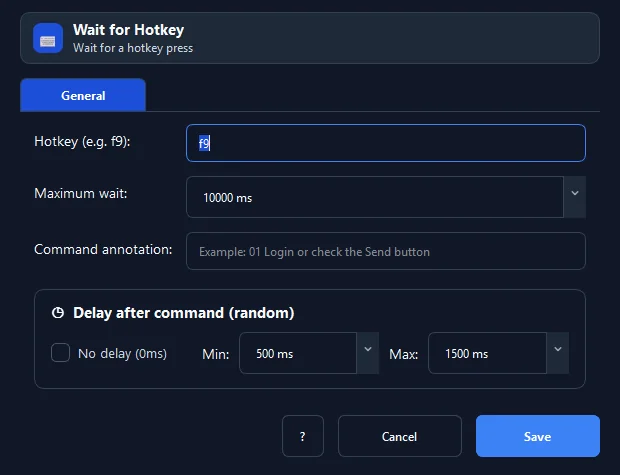
The Wait Hotkey command pauses macro execution and listens globally for a specific physical keypress event (such as Enter, F9, Space, Esc, or any alphanumeric key). As soon as the key is pressed, execution resumes immediately. This enables seamless Human-in-the-loop workflows: the robot automates initial setup, pauses for manual review or manual captcha completion, and resumes instantly upon the user's keystroke.
Screenshots & video#
When to use it#
- Pausing to let the operator type an SMS OTP code or solve a complex visual captcha manually.
- Pausing for user verification of sensitive transaction details before clicking 'Submit'.
- Synchronizing multi-stage interactive workflows requiring operator confirmation between stages.
- Waiting for an operator to position windows or complete two-factor authentication manually.
When not to use it#
- Simulating keystrokes into input fields (use Type Text or Key Press).
- Fixed idle duration pause without human interaction (use Delay).
Configuration steps#
- In RunMacro, open the Keyboard › Wait Hotkey command.
- In Hotkey, select or type the target key name (e.g.
enter,f9,space). - Set the Timeout (ms) (enter
0to wait indefinitely until the key is pressed). - Click Save to insert the command into the workflow.
Every option explained#
Expected result#
Workflow execution resumes seamlessly the instant the designated key is pressed.
Real example#
Example: Pause for manual captcha solving and resume on F9#
- Workflow fills username and password fields automatically.
- Display a Show Message notice: 'Please solve captcha then press F9'.
- Insert a Wait Hotkey command configured for key
f9with timeout0. - User solves captcha and presses F9 on their keyboard.
- RunMacro detects the F9 event and clicks 'Login' to proceed with the remaining workflow.
Limitations and failure cases#
- If the foreground window runs as Administrator while RunMacro runs standard, Windows security may isolate hotkey hooks.
Tips & common mistakes#
Verification details#
commands/wait.py· verified 2026-09-30