 RunMacro
RunMacro Documentation
Create your first robot, then go further as needed.
Clear step-by-step guides to create, run, and improve robots for repetitive computer work.
Extract Desktop UI Element Text into Variables (Smart Get Text) in RunMacro
Smart Get Text extracts text directly from desktop UI controls (TextBoxes, Labels, Buttons) into variables via Windows UI Automation without clipboard copying.
Prerequisites#
- The target desktop application displaying the text or input field is open on screen.
- The target text element has been picked successfully.
Supported modes#
- Desktop Mode — Accesses text via UIA ValuePattern, TextPattern, or Name properties.
What it does#
The Smart Get Text command retrieves text strings directly from desktop UI controls (TextBoxes, Labels, TextBlocks, ComboBoxes, StatusBars, or Buttons) via Microsoft UI Automation patterns: ValuePattern.Value, TextPattern, or AutomationElement.CurrentName. It accesses data in memory without needing cursor selection or Ctrl+C keystrokes, and includes built-in Regex Pattern filtering and automatic whitespace trimming.
Screenshots & video#
When to use it#
- Capturing newly generated invoice or contract numbers after completing transactions in enterprise apps.
- Reading account balances or payment totals to feed conditional logic (IF) branches.
- Extracting error messages or dialog warnings to record into logs or dispatch Telegram alerts.
- Grabbing customer tax IDs and names from desktop CRM screens into variables for cross-app automation.
When not to use it#
- Web browser pages (use Smart HTML DOM text commands).
- Scanned raster text inside remote desktop sessions (use Scan OCR).
Configuration steps#
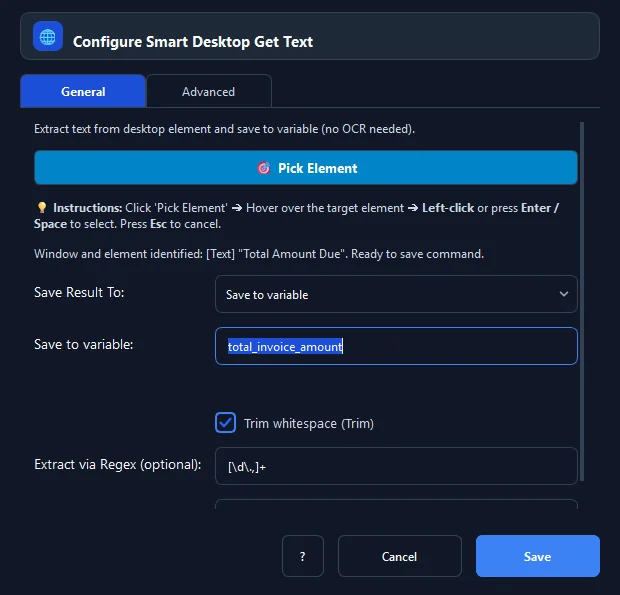
- In RunMacro, select the Keyboard › Smart Get Text command.
- Click 🎯 Pick Element and hover over the target label, text box, or status control to capture.
- Specify the variable name in Result Variable (e.g.
order_id). - Optionally provide a regex in Regex Pattern to isolate numbers or codes (e.g.
\d+). - Ensure Trim whitespace is checked.
- Select Save to: variable or file.
- Click Save to insert the command into the workflow.
Every option explained#
Expected result#
The control's text content is accurately assigned to the target variable or file.
Real example#
Example: Capture invoice total amount and parse digits#
- Add a Smart Get Text command.
- Pick the label showing 'Total: $1,500.00 USD'.
- Set Result Variable to
total_amount. - Enter Regex Pattern as
[0-9\.,]+to strip currency words. - Variable
{total_amount}now cleanly holds1,500.00.
Limitations and failure cases#
- Non-standard custom controls that omit Name and Value attributes may return empty strings.
- Controls completely excluded from the UIA tree require Scan OCR.
Tips & common mistakes#
Verification details#
commands/smart_desktop_get_text.py· verified 2026-09-30