 RunMacro
RunMacro Documentation
Create your first robot, then go further as needed.
Clear step-by-step guides to create, run, and improve robots for repetitive computer work.
Conditional Branching by Desktop UI Elements (Smart Desktop IF) in RunMacro
Smart Desktop IF is a conditional branching command in RunMacro that evaluates whether desktop controls exist, match text, are enabled, or are checked.
Prerequisites#
- Target desktop application is active on screen.
- Workflow contains target Label anchors for branching.
Supported modes#
- Desktop Mode — Probes UIA properties non-invasively without triggering mouse movement.
What it does#
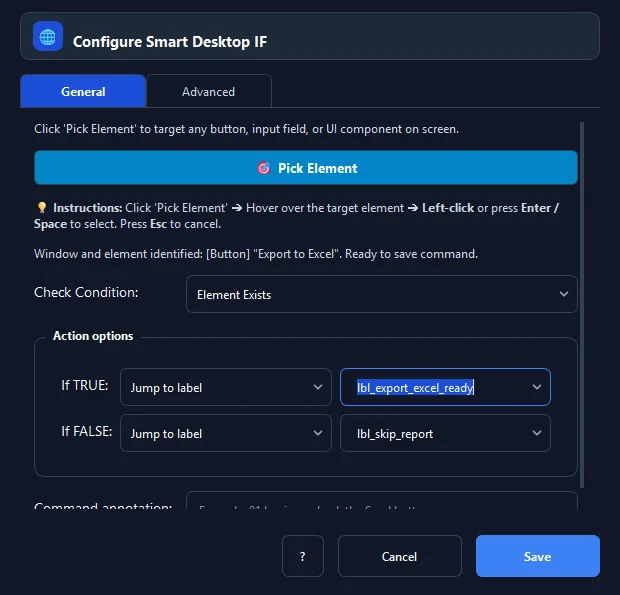
The Smart Desktop IF command evaluates real-time UI element states via Microsoft UI Automation and branches macro execution accordingly. Supported conditions include: Element exists (element_exists), Element does not exist (element_not_exists), Text contains (text_contains), Text equals (text_equals), Is enabled (is_enabled), or Is checked (is_checked). When the condition evaluates to true, execution jumps to the designated Label or continues down the True block.
Screenshots & video#
When to use it#
- Checking whether a confirmation popup or error dialog appeared so the macro can dismiss or confirm it.
- Verifying whether a 'Submit' or 'Save' button is currently clickable (Enabled) or grayed out (Disabled) before issuing clicks.
- Branching execution when an order status label reads 'Completed' versus 'Pending'.
- Checking whether a 'Tax Invoiced' checkbox is checked to avoid duplicate invoice issuance.
When not to use it#
- Evaluating web elements in browsers (use Smart HTML IF instead).
- Pure variable comparisons unrelated to UI controls (use If Variable).
Configuration steps#
- In RunMacro, open the Flow › Smart Desktop IF command.
- Click 🎯 Pick Element and hover over the control to inspect.
- Choose the Condition: Element exists, Element not exists, Text contains, Text equals, Is enabled, or Is checked.
- If using a text condition, enter the target string in Condition Value (supports variables
{var}). - Select destination labels in If Label and optionally Else Label.
- Configure the Timeout (ms) probe duration (default 1500ms).
- Click Save to insert the condition into the workflow.
Every option explained#
Expected result#
Execution flows immediately to the appropriate label based on live control state.
Real example#
Example: Auto-dismiss popup notice if present#
- Add a Smart Desktop IF command.
- Pick the 'Dismiss' button or header of the announcement popup.
- Set condition to Element exists (element_exists) with 1000ms timeout.
- Set If Label to
lbl_close_popup, and Else Label tolbl_continue. - Under
lbl_close_popup, place a Smart Click to dismiss the dialog.
Limitations and failure cases#
- Apps elevated with Administrator rights require RunMacro to run elevated as well.
Tips & common mistakes#
Verification details#
commands/smart_desktop_if.py· verified 2026-09-30