 RunMacro
RunMacro Documentation
Create your first robot, then go further as needed.
Clear step-by-step guides to create, run, and improve robots for repetitive computer work.
Automate Desktop UI Text Typing (Smart Desktop Type) in RunMacro
Smart Desktop Type populates text and dynamic variables into desktop inputs via Windows UI Automation using instant Set Value or realistic keystrokes.
Prerequisites#
- Target desktop application displays the target input control.
Supported modes#
- Desktop Mode — Interacts via UIA ValuePattern or Win32 SendInput.
What it does#
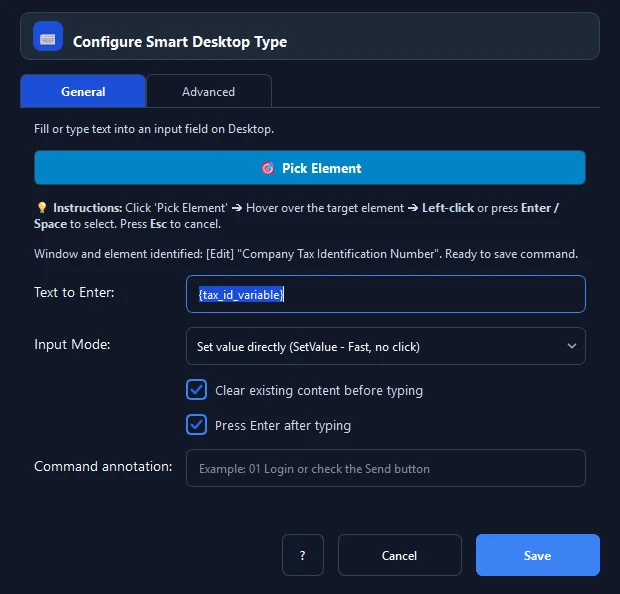
The Smart Desktop Type command populates text strings or dynamic variables into desktop inputs (TextBox, RichEdit, PasswordBox) via Microsoft UI Automation. It offers two powerful input modes: Direct Set Value via ValuePattern.SetValue() for instant input of long strings without Vietnamese IME font corruption or focus loss; and Simulated Keystrokes for natural typing with configurable inter-key delays. Includes built-in options to Clear before typing and Press Enter after typing.
Screenshots & video#
When to use it#
- Filling customer IDs, phone numbers, emails, and addresses from Excel into enterprise ERP/accounting fields.
- Entering passwords and login credentials with an immediate follow-up Enter keystroke.
- Typing long transaction memos without key drops or IME accent corruption.
- Clearing existing search filters before typing fresh search query strings.
When not to use it#
- Web browser inputs (use Smart HTML Type).
- Global shortcut key combos unattached to specific inputs (use Key Combo).
Configuration steps#
- In RunMacro, open the Keyboard › Smart Desktop Type command.
- Click 🎯 Pick Element and click the target TextBox control on your screen.
- In Text, enter the desired text or variable token (e.g.
{tax_id}). - Choose Input Mode: Set Value (instant UIA) or Keystrokes (simulated typing).
- Check Clear before typing to wipe existing content.
- Check Press Enter after typing to submit forms automatically.
- Click Save to insert the command into your workflow.
Every option explained#
Expected result#
Text is accurately populated into the target field, triggering optional Enter submissions.
Real example#
Example: Fill company tax ID and press Enter to query#
- Add a Smart Desktop Type command.
- Pick the 'Tax ID' input inside the e-invoicing desktop software.
- Set Text to
{tax_id}. - Choose Set Value mode, enable Clear before and Press Enter after.
- Execute — the tax code fills instantly and submits the search query automatically.
Limitations and failure cases#
- High-security banking password inputs that block SetValue require Keystrokes mode.
Tips & common mistakes#
Verification details#
commands/smart_desktop_type.py· verified 2026-09-30