 RunMacro
 Docs
RunMacro Documentation
Create your first robot, then go further as needed.
Clear step-by-step guides to create, run, and improve robots for repetitive computer work.
Automate Desktop Checkbox & Radio Toggling (Smart Toggle) in RunMacro
Smart Toggle Checkbox sets definitive Check, Uncheck, or Toggle states on desktop CheckBoxes and RadioButtons via Windows UI Automation.
Prerequisites#
- Target desktop application displays the target CheckBox or RadioButton.
Supported modes#
- Desktop Mode — Interacts directly via UIA TogglePattern without requiring cursor movement.
What it does#
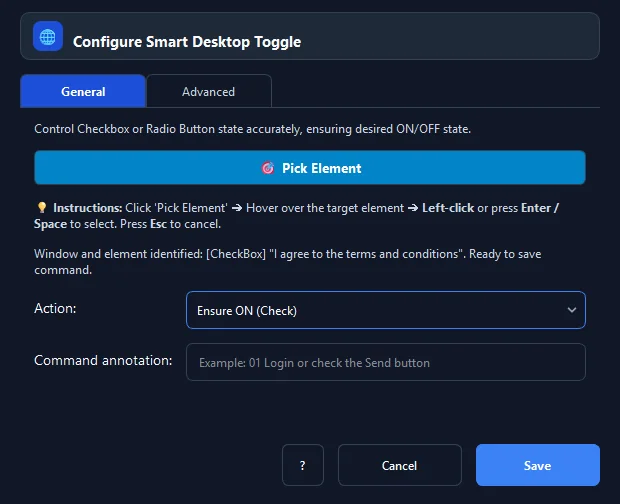
The Smart Toggle Checkbox command sets definitive states for CheckBoxes, RadioButtons, or ToggleSwitches in desktop apps using UIA TogglePattern.Toggle(). It eliminates the hazard of blind clicking (where clicking an already-checked box inadvertently unchecks it) by offering explicit idempotent operations: Check, Uncheck, or Toggle.
Screenshots & video#
When to use it#
- Guaranteeing that 'I agree to the terms' checkboxes are explicitly checked in registration flows.
- Unchecking bundled software or telemetry checkboxes in automated application setup wizards.
- Activating 'Remember me' or 'Launch on startup' toggles in desktop administration tools.
- Configuring standardized computer settings based on automated audit checklists.
When not to use it#
- Web browser checkboxes (use Smart HTML).
- Standard command buttons (use Smart Click).
Configuration steps#
- In RunMacro, select the Mouse › Smart Toggle Checkbox command.
- Click 🎯 Pick Element and hover over the target Checkbox or RadioButton to pick.
- Choose the Action: Check, Uncheck, or Toggle.
- Configure Timeout (ms) for control resolution (default 2000ms).
- Click Save to insert the command into your workflow.
Every option explained#
Expected result#
The checkbox or radio control is set definitively to the requested state.
Real example#
Example: Ensure 'Remember credentials' is always checked#
- Add a Smart Toggle Checkbox command.
- Pick the 'Remember Login' checkbox on the application login dialog.
- Set action to Check.
- During execution, if unchecked it activates; if already checked it safely remains checked without flipping.
Limitations and failure cases#
- Custom graphic toggles lacking UIA TogglePattern support require Find Image paired with Click.
Tips & common mistakes#
Prefer explicit Check or Uncheck over Toggle to make workflows idempotent across repeated runs.
Checking a RadioButton within a mutual RadioGroup will automatically deselect peer options per standard Windows behavior.
Verification details#
commands/smart_desktop_toggle.py· verified 2026-09-30