 RunMacro
RunMacro Documentation
Create your first robot, then go further as needed.
Clear step-by-step guides to create, run, and improve robots for repetitive computer work.
Wait for Desktop Elements to Appear or Vanish (Smart Desktop Wait) in RunMacro
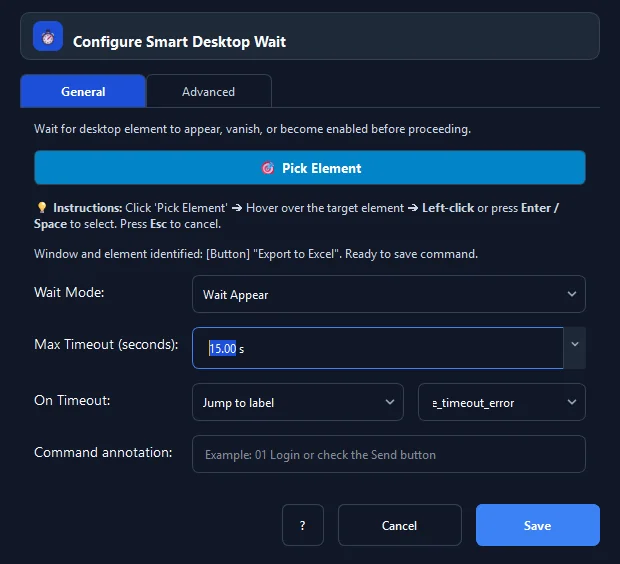
Smart Desktop Wait is an intelligent synchronization command in RunMacro that waits for desktop elements to appear, vanish, or become enabled via Windows UI Automation.
Prerequisites#
- Target element can be identified via the Pick Element tool.
Supported modes#
- Desktop Mode — Polls element state via background UIA queries with negligible CPU load.
What it does#
The Smart Desktop Wait command intelligently pauses execution until a target desktop UI element reaches a designated state via Microsoft UI Automation. Wait modes include: Appear, Vanish (e.g. waiting for a loading spinner or progress bar to disappear), Enabled (clickable), or Disabled. Its lightweight 150ms polling cycle synchronizes workflows at maximum speed without wasting time on brittle static Delay pauses.
Screenshots & video#
When to use it#
- Waiting for ERP or accounting software to finish populating a data table before initiating exports.
- Waiting for print dialogs or save-as file windows to fully materialize on screen.
- Waiting for progress bars or loading spinners to vanish completely before proceeding.
- Waiting for a 'Confirm Payment' button to transition from Disabled (gray) to Enabled (clickable).
When not to use it#
- Waiting for web elements in browsers (use Smart HTML Wait).
- Fixed rest pause between non-UI actions (use Delay).
Configuration steps#
- In RunMacro, open the Flow › Smart Desktop Wait command.
- Click 🎯 Pick Element and hover over the element to monitor.
- Select Wait Mode: appear, vanish, enabled, or disabled.
- Set the Timeout (seconds) threshold (default 30 seconds).
- Choose behavior under On Timeout: stop, goto, or continue.
- If jumping to a label, provide the destination in Timeout Label (e.g.
lbl_handle_failure). - Click Save to insert the wait condition.
Every option explained#
Expected result#
Macro execution resumes instantaneously the millisecond the element reaches target state.
Real example#
Example: Wait for save progress bar to vanish before closing app#
- Add a Smart Desktop Wait command after clicking 'Save'.
- Pick the 'Saving data...' progress bar control.
- Set Wait Mode: vanish with a 60-second timeout.
- As soon as the indicator disappears, the workflow immediately proceeds to close the app safely.
Limitations and failure cases#
- If the window is minimized to taskbar, some UIA properties may suspend updates until restored.
Tips & common mistakes#
Verification details#
commands/smart_desktop_wait.py· verified 2026-09-30