
Extract the username from an email in RunMacro
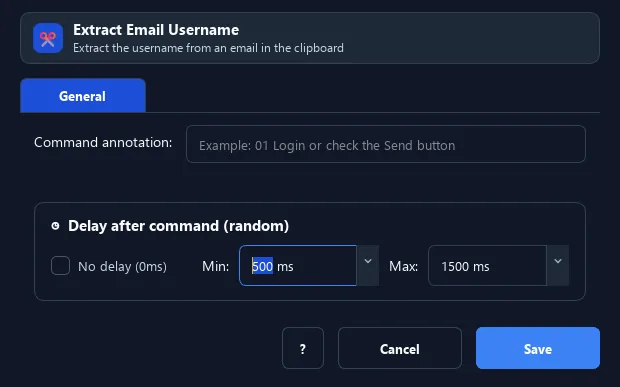
The Extract Email Username command reads the email in the clipboard, takes the part before @ (the username), and writes the result back to the clipboard.
Prerequisites#
- Add Extract Email Username to the macro.
- Prepare the data or target that Extract Email Username will use.
Supported modes#
- Desktop Mode
What it does#
The Extract Email Username command reads the email in the clipboard, takes the part before @ (the username), and writes the result back to the clipboard. E.g. user@gmail.com → user.
Screenshots & video#
When to use it#
- Generate usernames from a list of emails.
- Process bulk email data in a sign-up workflow.
- Take the name part to fill a "username" field.
When not to use it#
- Do not use it for full email parsing, multiple addresses, display names, or plus-addressing that must be preserved.
Configuration steps#
- Put the email in the clipboard (Copy Text from the email field, or Set Clipboard).
- Add a Keyboard › Extract Email Username command.
- Save. After running, the clipboard holds the username; use Paste from Clipboard to fill it.
Expected result#
After execution, Extract Email Username completes the described action and makes its result available to the next step.
Real example#
Example: fill a username from an email#
- Set Clipboard =
john@gmail.com. - Extract Email Username → clipboard becomes
john. - Click the username field, Paste from Clipboard.
Limitations and failure cases#
- It takes the part before @ and overwrites the clipboard; empty or malformed input can produce an empty username.
Tips & common mistakes#
If the clipboard has no
@, the command leaves the content as-is and logs a note.Verification details#
commands/keyboard.py