 RunMacro
RunMacro Documentation
Create your first robot, then go further as needed.
Clear step-by-step guides to create, run, and improve robots for repetitive computer work.
Automate Smart Desktop UI Scrolling (Smart Scroll) in RunMacro
Smart Scroll is an intelligent desktop scrolling command powered by Windows UI Automation. It scrolls tables, long lists, or brings hidden items into view (ScrollIntoView) without relying on fragile cursor coordinates.
Prerequisites#
- The target desktop application with scrollable list or table is running.
- The container or target element is picked using the Pick Element tool.
Supported modes#
- Desktop Mode — Interacts directly via Windows UI Automation ScrollPattern and ScrollItemPattern.
What it does#
The Smart Scroll command controls scrollbars in desktop lists, data grids, or window containers using Microsoft UI Automation (UIA) with ScrollPattern and ScrollItemPattern.ScrollIntoView(). Unlike raw mouse wheel scrolling that risks missing the container or scrolling past targets due to UI scaling, Smart Scroll targets the exact container and scrolls reliably by precise increments or immediately brings deep offscreen controls into the visible viewport.
Screenshots & video#
When to use it#
- Navigating long lists with thousands of records in enterprise software (ERP, SAP, accounting software, CRM, WinForms, WPF).
- Bringing obscured action buttons or input fields at the bottom of tall dialogs directly into view for subsequent clicks.
- Continuously scrolling down to trigger infinite scroll data loading in desktop apps prior to table extraction.
- Automating document browsing in PDF viewers, Excel spreadsheets, or large documents using controlled step increments.
When not to use it#
- Scrolling web browser pages (use Smart HTML or Chrome CDP instead).
- Custom canvas elements lacking accessibility trees (use standard Mouse Wheel).
Configuration steps#
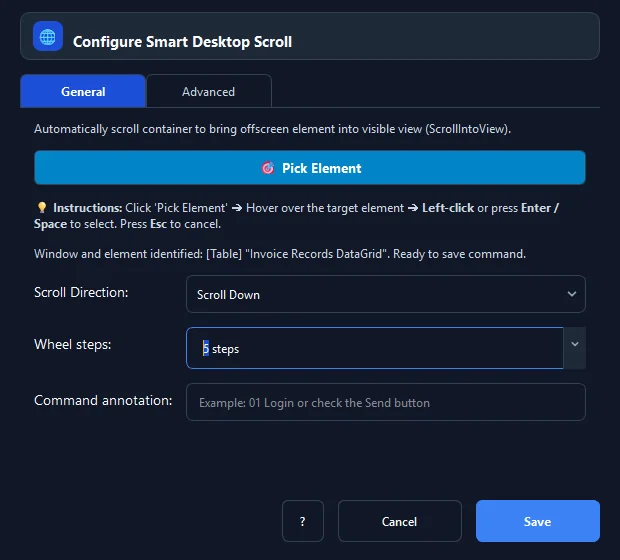
- In RunMacro, open the Mouse › Smart Scroll command from the left palette.
- Click 🎯 Pick Element — the main window minimizes into a live highlight tracker.
- Hover over the target table, data grid, or list control and left-click (or press
Enter / Space) to pick. - Choose the Direction: Down, Up, or Scroll Into View.
- Set the number of Scroll steps (default 3 steps per run).
- Configure Timeout (ms) for container discovery (default 2000 ms).
- Click Save to insert the command into your workflow.
Every option explained#
Expected result#
The desktop table or list scrolls in the requested direction by exact notches, or centers the target element in the viewport.
Real example#
Example: Scroll bank statement table to load full history#
- Add a Smart Scroll command to the workflow.
- Pick the transactions DataGrid inside the desktop banking app.
- Choose Down direction and set scroll steps to 5.
- Wrap in a
Loopcommand 10 times with an 800ms delay to allow data buffering.
Limitations and failure cases#
- Legacy MFC apps or games lacking ScrollPattern will fall back to simulated wheel events.
- Paginated tables require clicking next-page buttons instead of scrolling.
Tips & common mistakes#
Verification details#
commands/smart_desktop_scroll.py· verified 2026-09-30