
RunMacro Documentation
Create your first robot, then go further as needed.
Clear step-by-step guides to create, run, and improve robots for repetitive computer work.
Iterate data collections with For Each Loop in RunMacro
For Each Loop iterates over collections (text lines, files, JSON arrays, ranges, folders) and binds each element to a variable.
Prerequisites#
- Source file or JSON collection exists and is accessible.
- Target variable names are configured clearly for child commands to consume.
Supported modes#
- Desktop Mode
- Browser Mode
- RunMacro Runner
What it does#
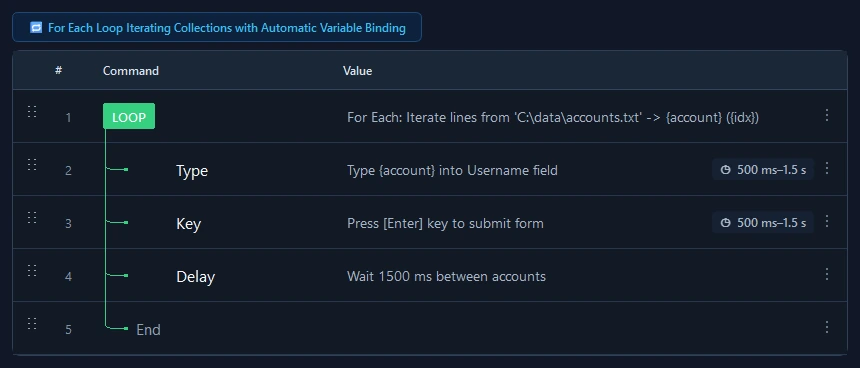
The For Each Loop command iterates sequentially through elements in a data collection. It supports 5 collection sources: Text Lines, File Lines, JSON Arrays, Numeric Ranges with custom step increments, and Directory Files matched with wildcard filters. On each iteration, the current element value and its 0-based index are automatically bound to target variables, making batch automation seamless.
Screenshots & video#
When to use it#
- Reading each line of a user or phone number list file to execute batch automations.
- Looping through images or documents in a local folder to batch upload or rename them.
- Iterating items returned from a REST API JSON array or database query.
- Running numbered iterations across a numeric range (e.g. page numbers 1 through 20).
When not to use it#
- Repeating an identical action unrelated to any data set (use Loop instead).
- Looping on dynamic asynchronous state changes (use While instead).
Configuration steps#
- Add a Control Flow › For Each Loop command to your workflow.
- Select the Source Type: Text Lines, File Lines, JSON Array, Numeric Range, or Directory Files.
- Provide source data (raw text, file path, JSON payload, min-max-step values, or folder path).
- Specify the Item Variable (e.g.
item) and optionally an Index Variable (e.g.i). - Insert actions that process each item inside the loop body. Close with End Loop. Save.
Every option explained#
Expected result#
Each collection element is bound to the target variable and processed by child commands until the collection is exhausted.
Real example#
Example: Iterate lines from a file and submit into a web form#
- Insert For Each with File source: C:dataaccounts.txt.
- Item Variable: {account}, Index Variable: {idx}.
- Inside: Type {account} into input field, click Submit, Delay 1500ms.
- Close with End Loop. Execution completes when all lines have been processed.
Limitations and failure cases#
- If the source file is deleted or locked mid-execution, iteration fails with an I/O error.
- Source JSON strings must be strictly valid JSON; syntax errors prevent the loop from initializing.
Tips & common mistakes#
Verification details#
commands/control_flow.py