
Select an extension popup target to act on (CDP)
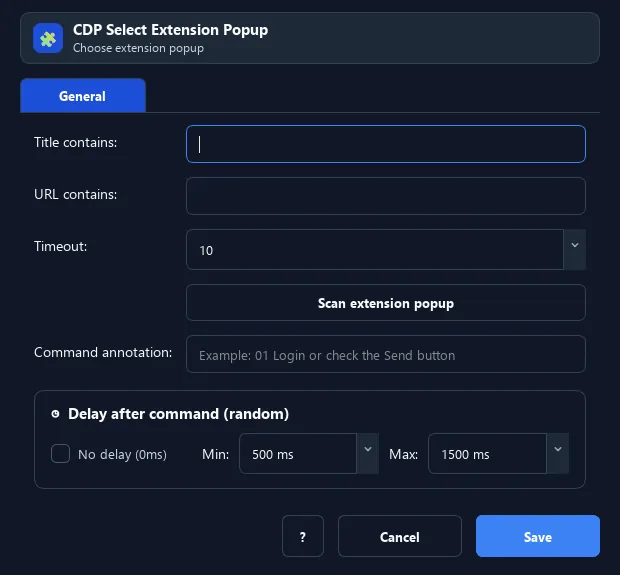
The Select Extension Popup command finds an extension popup window (by title/URL contains, or popup keywords like notification/confirm/approval) and switches CDP focus to it.
Prerequisites#
- Add Select Extension Popup to the macro.
- Prepare the data or target that Select Extension Popup will use.
Supported modes#
- Browser Mode
What it does#
The Select Extension Popup command finds an extension popup window (by title/URL contains, or popup keywords like notification/confirm/approval) and switches CDP focus to it. After this, Smart HTML/click commands act on that popup.
Screenshots & video#
When to use it#
- Confirm a transaction on a crypto wallet popup.
- Act on an extension approval/connect window.
- Ensure following commands target the popup, not the main tab.
When not to use it#
- Do not use it before the popup opens or when the extension uses a page/service worker instead of a popup target.
Configuration steps#
- Once the extension popup appears, add Browser › Select Extension Popup.
- Enter Title contains or URL contains to match the right popup.
- Set a timeout (seconds) to wait for the popup. Save.
Every option explained#
Expected result#
After execution, Select Extension Popup completes the described action and makes its result available to the next step.
Real example#
Example: select a confirm popup#
- Select Extension Popup: URL contains
notification. - Smart HTML › Click the "Confirm" button on the popup.
- Continue the script.
Limitations and failure cases#
- Popup targets are short-lived and can close on blur; multiple popups/extensions make selection ambiguous.
Tips & common mistakes#
Unlike Click Popup (coordinate-based), this only switches focus — then use Smart HTML to act by selector, which is more reliable.
Verification details#
commands/browser.py