
Load account data from the Dulieu tool in RunMacro
The Data command works with the companion Dulieu tool (an SQLite account store).
Prerequisites#
- Add Data (Dulieu) to the macro.
- Prepare the data or target that Data (Dulieu) will use.
Supported modes#
- RunMacro Runner
What it does#
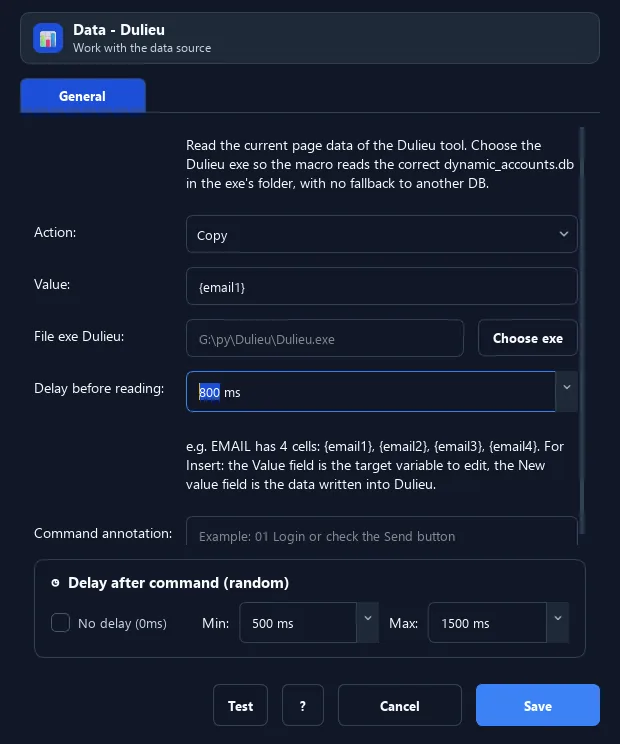
The Data command works with the companion Dulieu tool (an SQLite account store). It Reads the current page data into variables, Copies a value to the clipboard, or Inserts a value back into a data field.
Screenshots & video#
When to use it#
- Load account info (email, password...) from Dulieu to fill forms.
- Copy a data field to the clipboard to paste.
- Write a result (e.g. a token) back into Dulieu.
When not to use it#
- Do not use it before verifying source encoding, headers, and column format.
Configuration steps#
- Add a File › Data command and choose the Dulieu.exe path.
- Choose the action: Read / Copy / Insert.
- Enter the variable to use (e.g.
{email1}); for Insert, also enter the value to write. - Save.
Every option explained#
Expected result#
After execution, Data (Dulieu) completes the described action and makes its result available to the next step.
Real example#
Example: load email/password then log in#
- Data Read with
{email1}and{password1}. - Type Text
{email1},{password1}into the form. - Click login.
Limitations and failure cases#
- Schema/path changes or locked files can prevent loading; large datasets increase memory and processing time.
Tips & common mistakes#
This needs the companion Dulieu tool; variable names are normalized from column titles (e.g. "Email" →
email1).Verification details#
commands/data_source.py