 RunMacro
RunMacro Documentation
Create your first robot, then go further as needed.
Clear step-by-step guides to create, run, and improve robots for repetitive computer work.
Extract Desktop UI Tables to Excel & CSV (Smart Export Table) in RunMacro
Smart Export Table extracts tabular data (DataGrids, Tables, ListViews) from desktop apps into Excel, CSV, or memory variables via Windows UI Automation, even if the app lacks an export feature.
Prerequisites#
- The target desktop application displaying a table is running.
- The grid control is targeted using the Pick Table button.
Supported modes#
- Desktop Mode — Reads structured rows and columns via UIA TablePattern and GridPattern.
What it does#
The Smart Export Table command automatically extracts rows and columns from desktop Table, DataGrid, ListView, or TreeView controls using Windows UIA TablePattern and GridPattern. Extracted data includes column headers and cell values, and can be saved directly as an Excel workbook (.xlsx), UTF-8 encoded .csv file, or stored in a memory variable for workflow iteration (Loop).
Screenshots & video#
When to use it#
- Extracting inventory reports and invoice lists from legacy desktop software that lack an export button.
- Extracting banking transaction statements, payroll sheets, or reconciliation grids into external files.
- Loading table data into a JSON workflow variable to iterate through rows and automate subsequent actions.
- Scheduling recurring automated backups of desktop management grids into standardized CSV archives.
When not to use it#
- Scraping tables from web browsers (use Smart HTML Table extraction instead).
- Scanned raster table images (use Scan OCR instead).
Configuration steps#
- In RunMacro, select the File › Smart Export Table command.
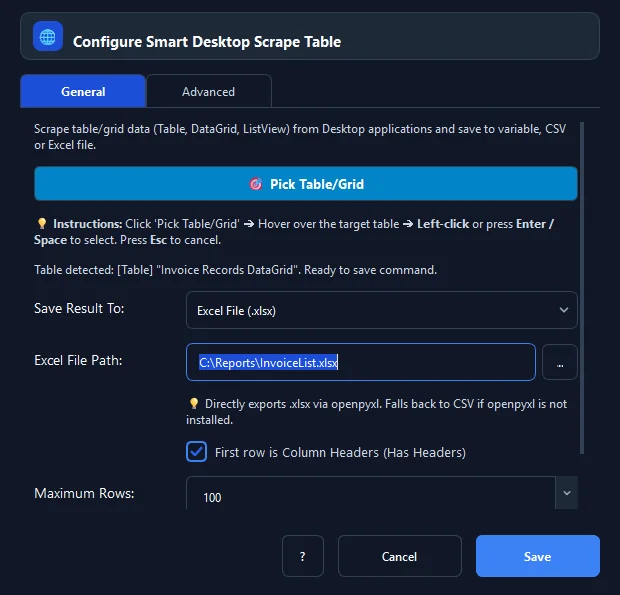
- Click 🎯 Pick Table/DataGrid and left-click the target table in your desktop app.
- Select destination under Save to: variable, excel, csv, or txt.
- If exporting to file, provide the destination path in File path (e.g.
C:\Reports\Invoices.xlsx). - Check Has headers if the first row contains column headers.
- Set Max rows (enter
0for unlimited extraction). - Click Save to insert the command into your workflow.
Every option explained#
Expected result#
An Excel (.xlsx) or CSV file is generated with populated rows and columns, or a variable is assigned the table array.
Real example#
Example: Export 200 sales orders from POS app to Excel#
- Add a Smart Export Table command.
- Pick the orders DataGrid in the POS desktop application.
- Set Save to: Excel and path to
D:\Orders\TodayOrders.xlsx. - Set Max rows to 200 and enable Has headers.
- Execute — all 200 orders are written into an Excel spreadsheet in seconds.
Limitations and failure cases#
- Custom canvas-drawn grids without UIA support require OCR region scanning.
- Extremely large tables with millions of rows should specify Max Rows to conserve memory.
Tips & common mistakes#
Verification details#
commands/smart_desktop_scrape_table.py· verified 2026-09-30