
Use the Template Library to open or insert reusable workflows
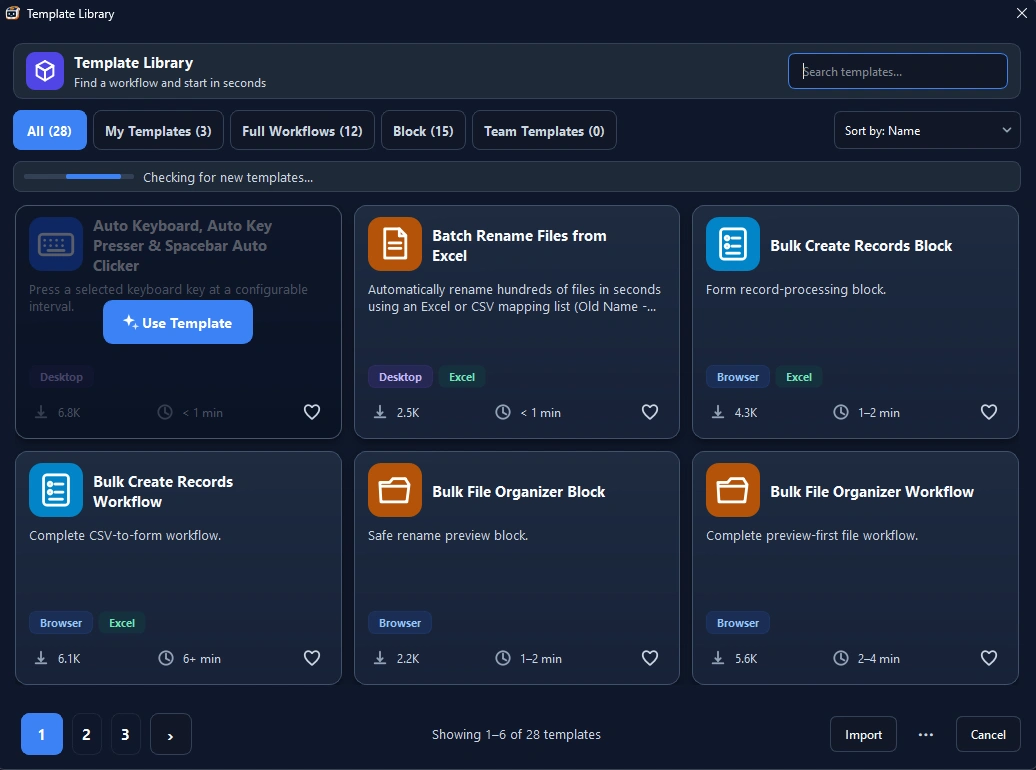
The Template Library combines complete workflows and reusable blocks from three sources: built-in templates, your templates, and Team Template Cloud. Open File › Open macro template..., search by text or category, inspect commands and dependencies, then copy the template into a new macro or insert it below the selected command without changing the original.
Prerequisites#
- RunMacro is open in the macro editor rather than the RunMacro Runner window.
- The current macro contains at least one command when you want to save a new template.
- The main file declared by the manifest still exists and is readable before opening or inserting.
- Referenced files, images, or sub-macros should be available; RunMacro warns before opening or inserting when dependencies are missing.
Supported modes#
- Desktop Mode — The gallery and management actions work in Desktop Mode. The
window,chrome_cdp, ormixedmetadata is only a recommendation; you still need to verify that the commands are valid for Desktop Mode. - Browser Mode — The gallery also works in Browser Mode. A CDP template may need a connected Chrome session at run time, but Chrome is not required merely to search, preview, copy, or insert it.
What it does#
Template Library brings built-in templates, templates you saved, and templates cached from Team Cloud into one gallery. It supports text search, category filters, metadata, a preview of up to 12 commands, and a dependency report before use. Copy & Open creates an editable workspace copy; Add clones commands into a new group below the selection. You can also save the current macro as a template, import a file, and edit, duplicate, or delete personal entries without modifying built-in originals.
Screenshots & video#
When to use it#
- Start from a complete workflow instead of building every command manually.
- Insert a login, validation, or data-processing block into the macro being edited.
- Save a tested command sequence for reuse in other macros.
- Add a received
.pmacro-templateor.pmacrofile to My Templates.
When not to use it#
- You only need to invoke an external macro at run time — use Insert PMacro or Insert RunMacro package.
- You want to modify a built-in entry in place; open a copy or save your own template instead.
- You need fully automatic distribution across machines — Team Template Cloud still requires recipients to press Sync, so use another deployment process when synchronization must be unattended.
- The template comes from an untrusted source and you have not reviewed its commands, dependencies, or safety warnings.
Configuration steps#
- Open File › Open macro template...; to insert at a chosen position, select a row and use the Insert macro template context-menu action.
- Let the built-in template check finish, or click Reload to run the check manually.
- Type in Search templates..., choose a category chip, and expand My Templates, Full Workflows, Block, or Team templates.
- Select an entry and review its description, source, readiness, recommended mode, version, tags, and command preview.
- Check the dependency line. If it reports missing items, inspect the details and prepare the required files before continuing.
- Choose Copy & Open to create a separate macro, or Add to clone the commands into the current macro.
- If you open while the command table already has content, choose Add to current macro or Create new macro; RunMacro asks about unsaved work when necessary.
- Accept the dependency warning only if you want to continue. Insertion lists and skips unsupported commands; Import silently omits them, logs their names, and can still report a successful import.
- Review the new group or macro, replace sample values with your own data, test it, and save it to disk.
Every option explained#
Expected result#
When opened, RunMacro copies the template into Downloads/RunMacroTemplates/<id> under a unique folder and loads that editable copy. When inserted, cloned commands appear in a new group below the selection, labels are renamed to avoid collisions, and the macro becomes dirty; the source template remains unchanged.
Real example#
Example: open a built-in workflow as a separate macro#
- Open File › Open macro template... and let the new-template check finish.
- Search for
form, choose the relevant category, and expand Full Workflows. - Select the template and inspect its mode, first 12 commands, and dependency line.
- Click Copy & Open; if the current macro has commands, choose Create new macro and handle the save prompt.
- Replace the sample URL and data, test the workflow, then save the new
.pmacrofile.
Example: save and reuse a validation block#
- Build and test the validation command sequence in the current macro.
- Choose File › Save current macro as template..., set Block template, ID
check-order-state, and version1.0.0. - Open the target macro, select the row after which the block belongs, then use Insert macro template from the context menu.
- Expand My Templates, select the saved block, and click Add.
- Review the new group, replace input variables, and test before saving the target macro.
Limitations and failure cases#
- The library belongs to the macro editor and is not available in RunMacro Runner.
- Recommended mode and readiness are advisory metadata; they do not switch the workspace or guarantee that the template can run in the current mode.
- Command types unavailable in the installed RunMacro build are skipped. Insertion shows a warning and list; Import only logs their names, can still report success, and saves the supported remainder without a dialog warning.
- Dependency analysis is a warning only. You may continue with missing files, images, or sub-macros, so failure can still occur at run time.
- System template sync downloads missing IDs only; Reload does not upgrade or overwrite an existing built-in entry with the same ID.
- Built-in templates cannot be edited or deleted in place; all changes must happen in a copied macro or personal template.
- Full and Block are grouping and display metadata; the library does not prove that the commands form a complete workflow or an independent snippet.
- Opening always creates another copy under the default Downloads workspace; old copies are not cleaned automatically.
- IDs are slugged to lowercase letters, digits,
-, or_and capped at 80 characters; different titles can collapse to the same ID and trigger overwrite handling.
Tips & common mistakes#
Verification details#
core/template_library.pyui/main_window.pystorage/json_store.pytests/test_system_template_sync.py